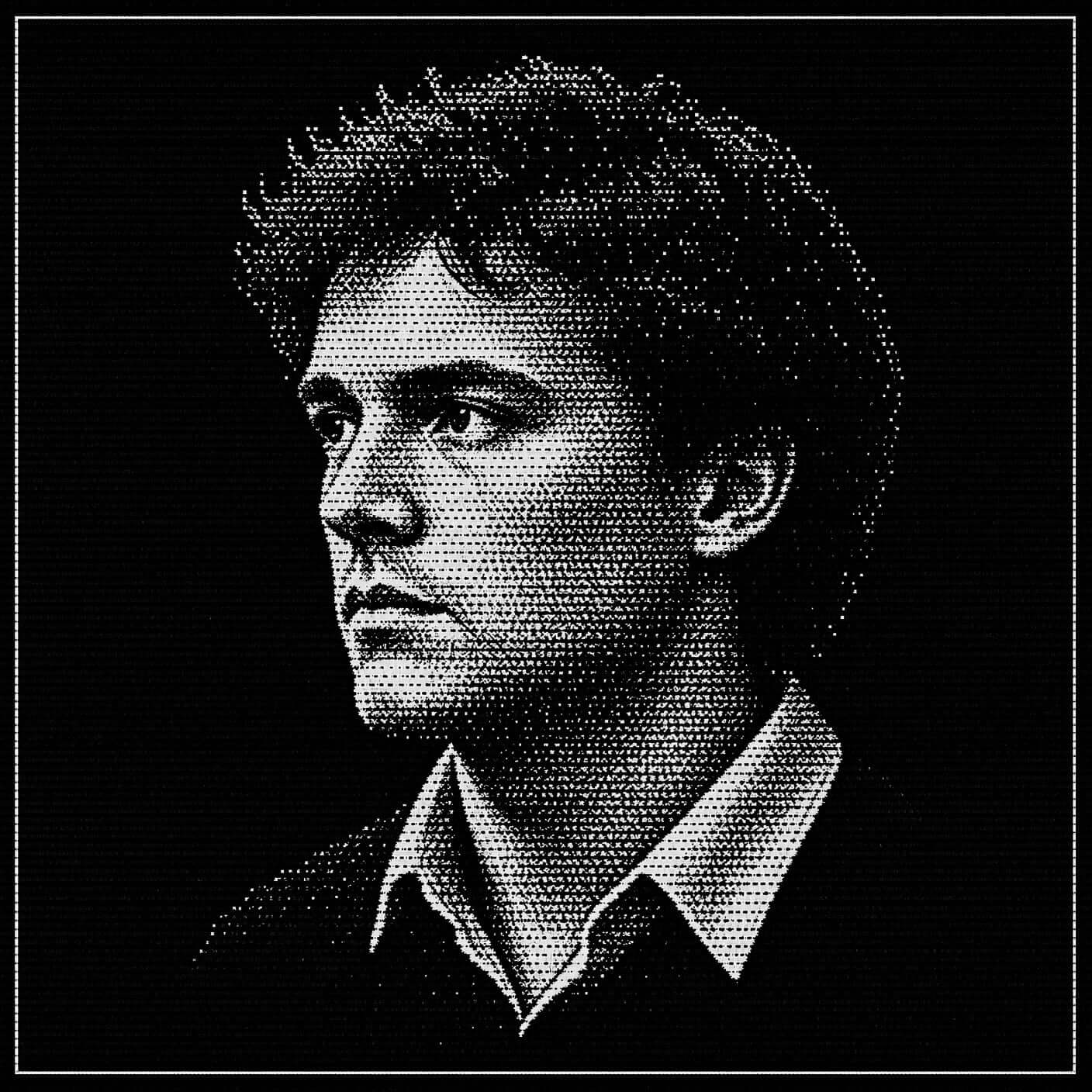
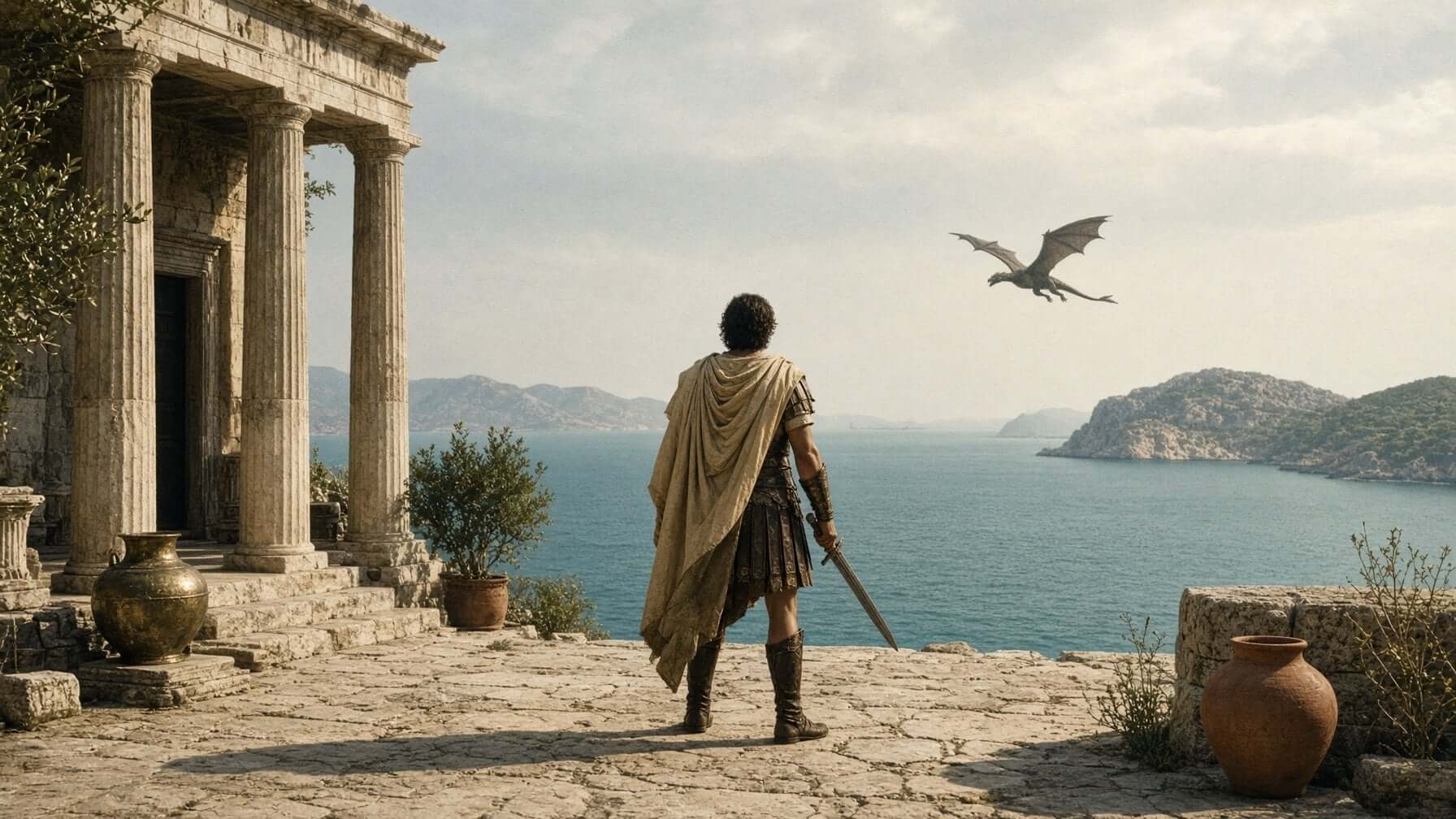
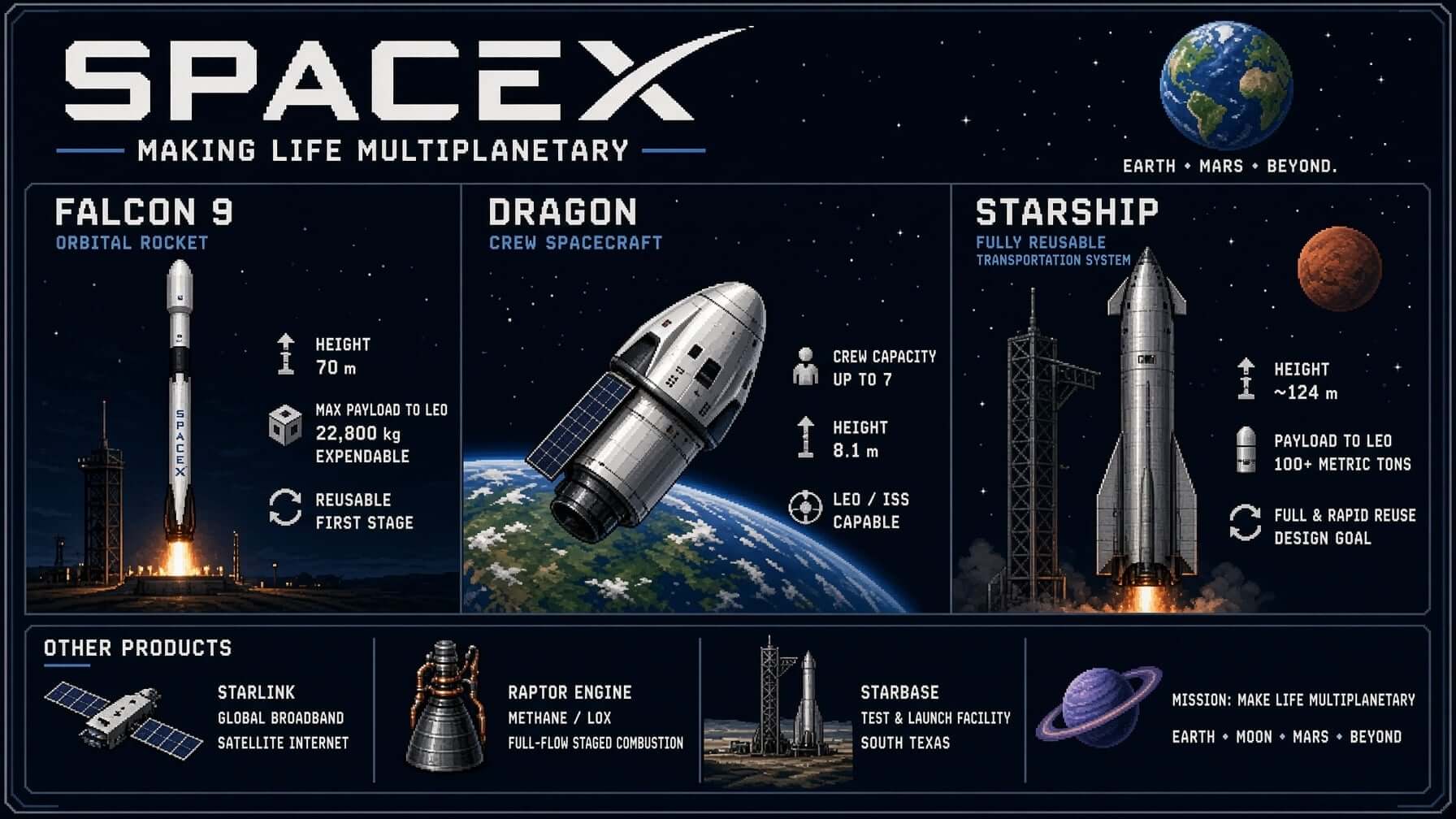
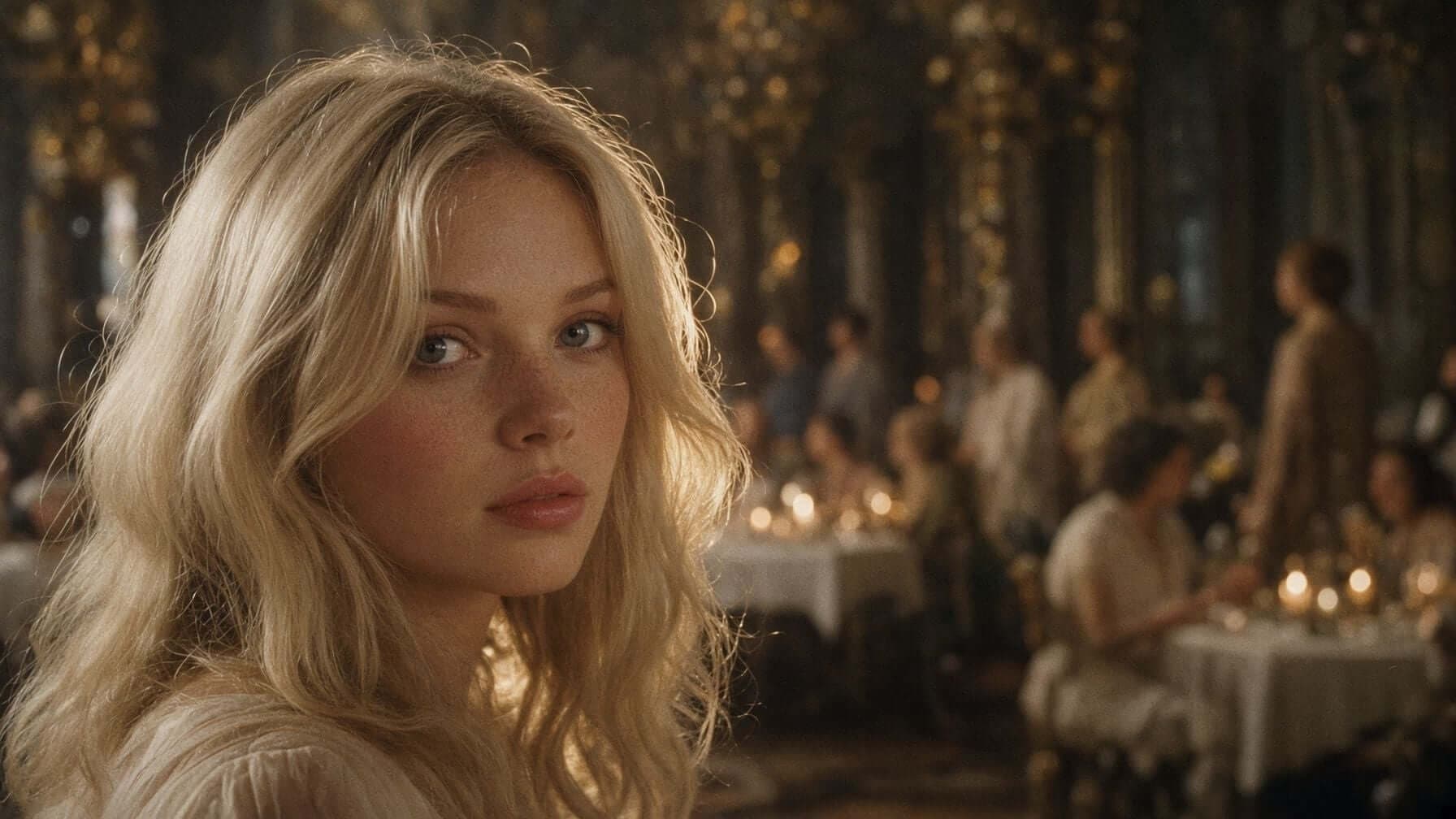
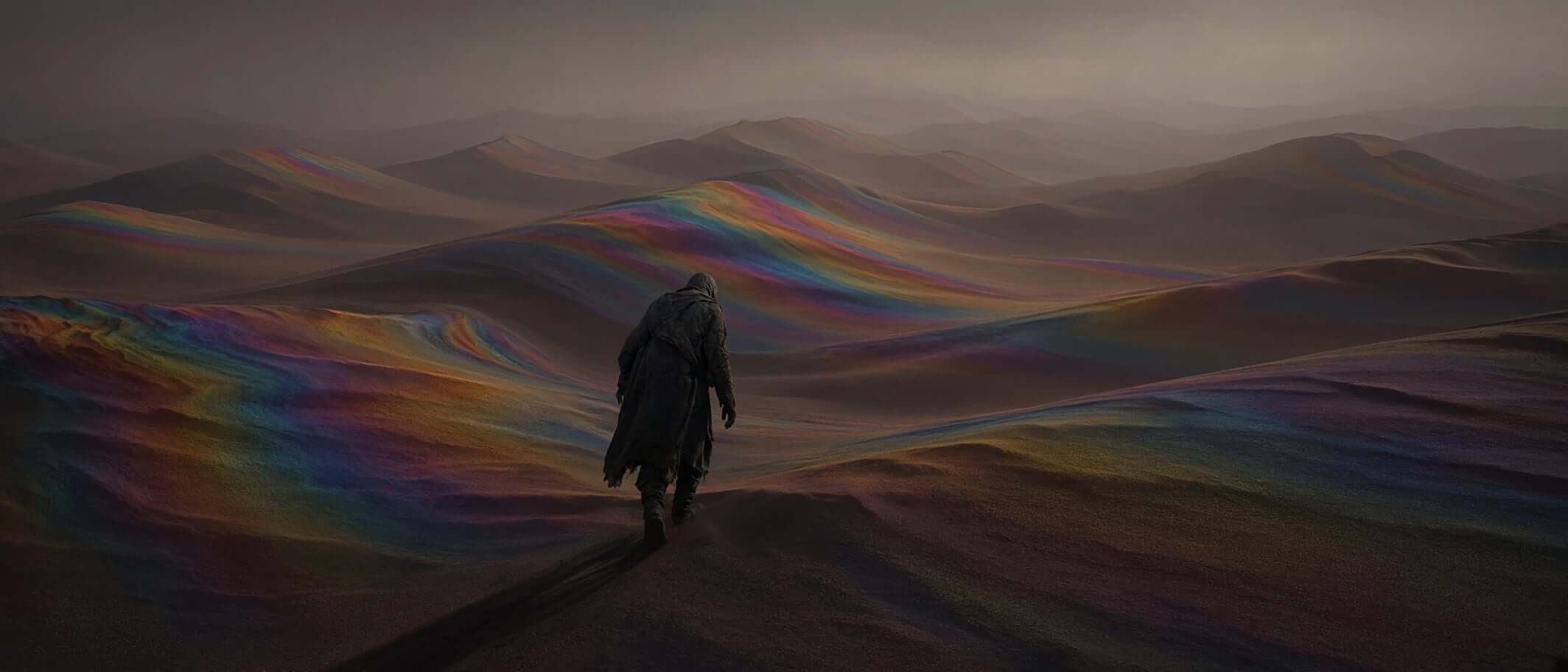
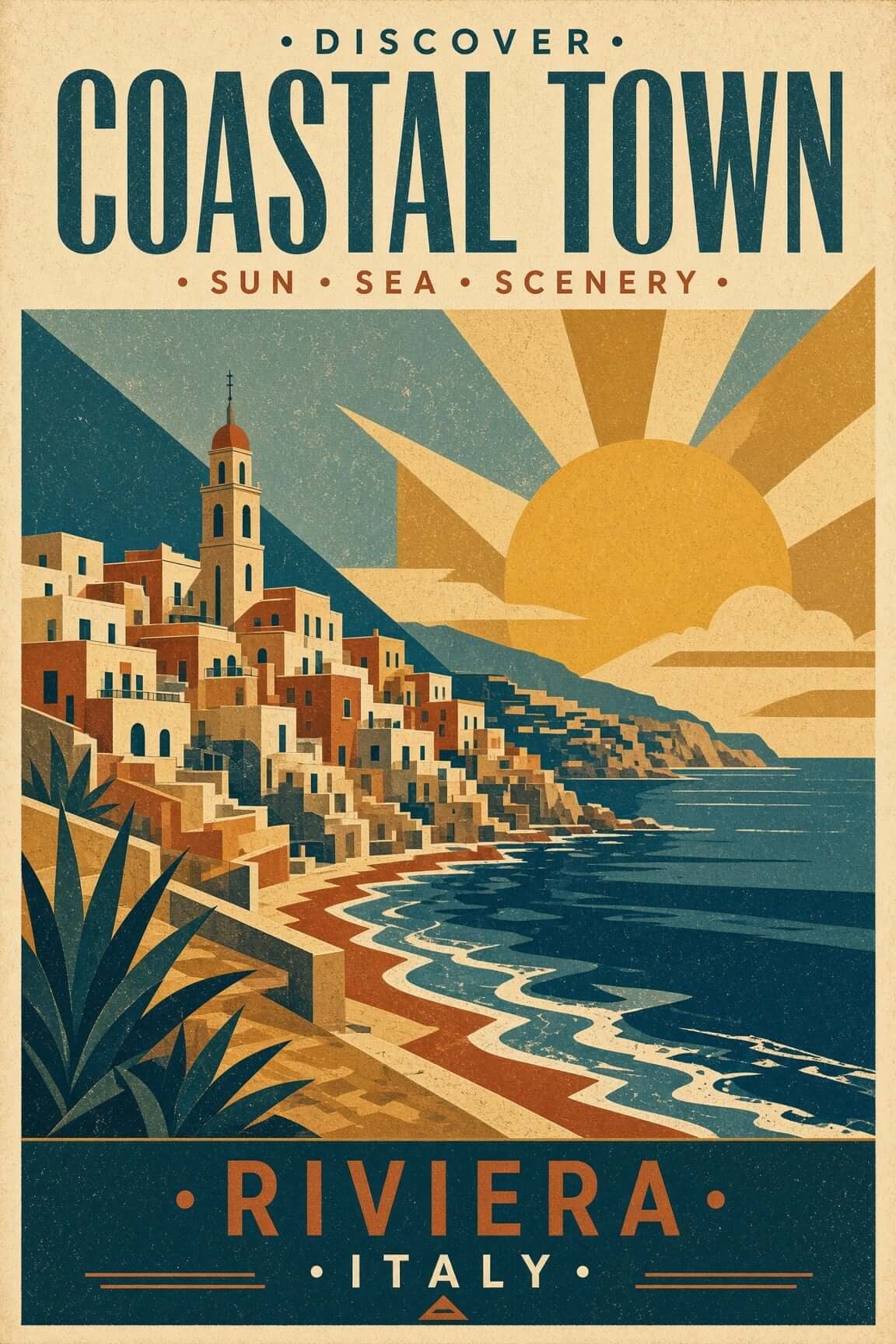
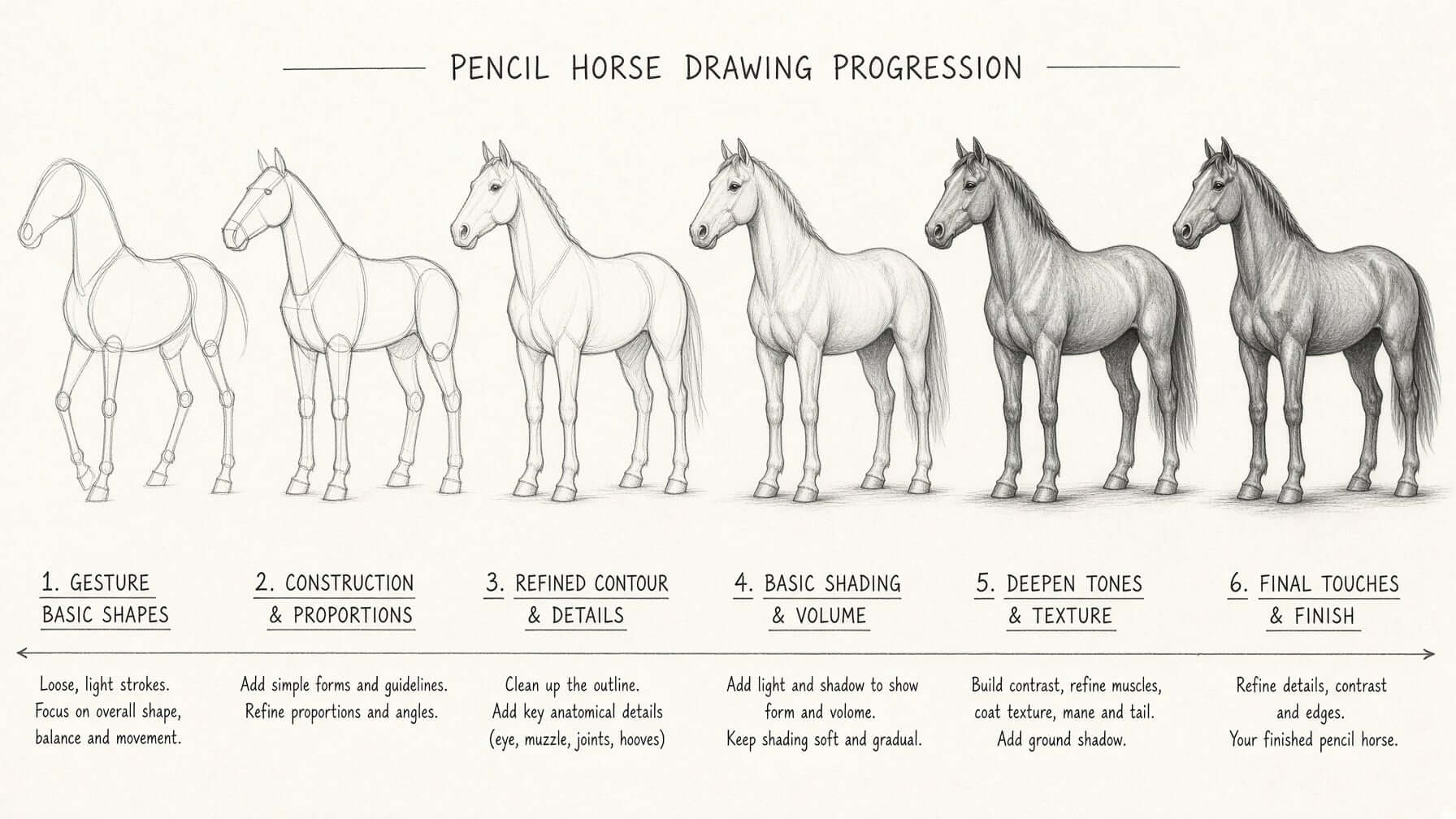
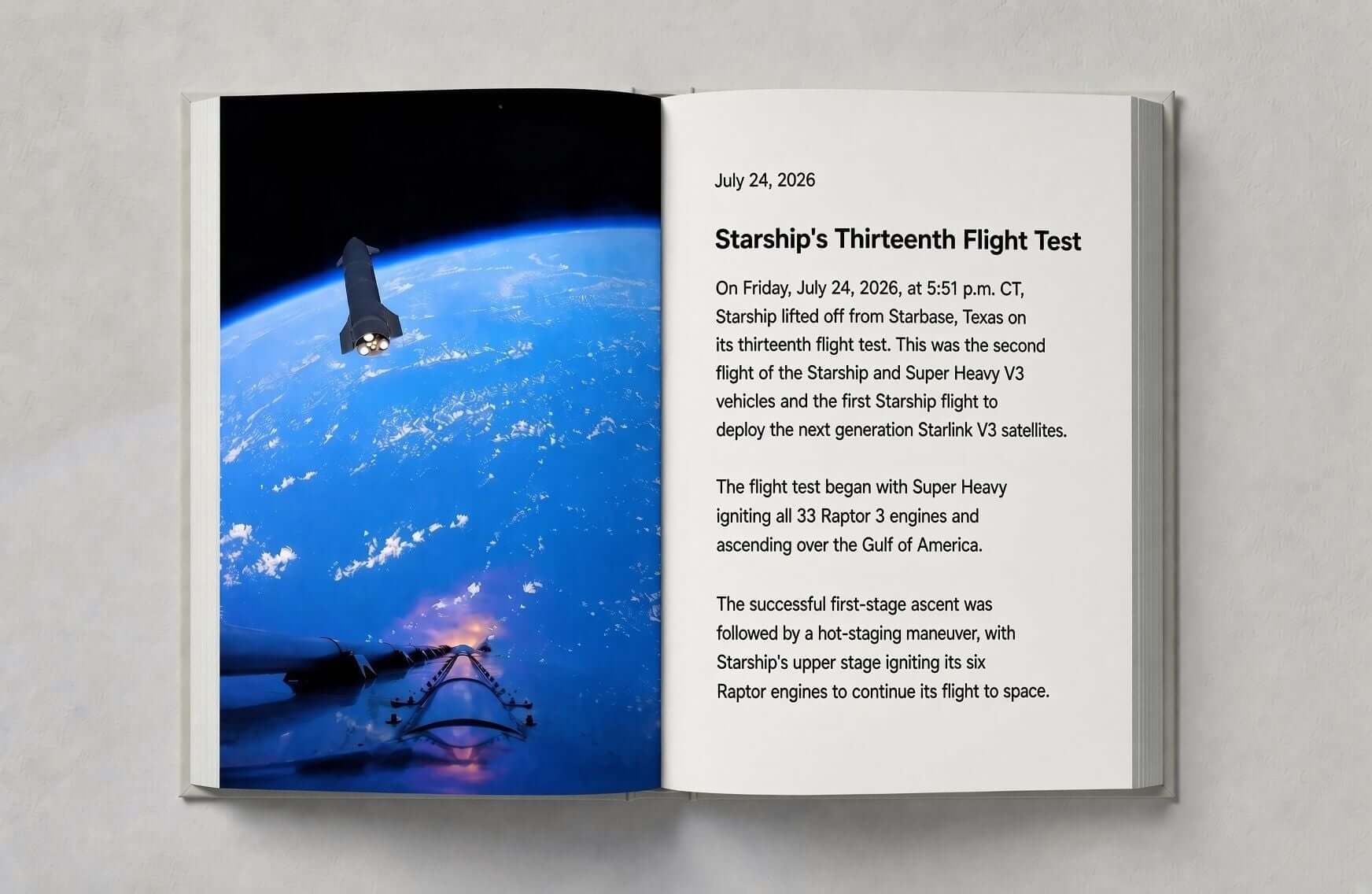
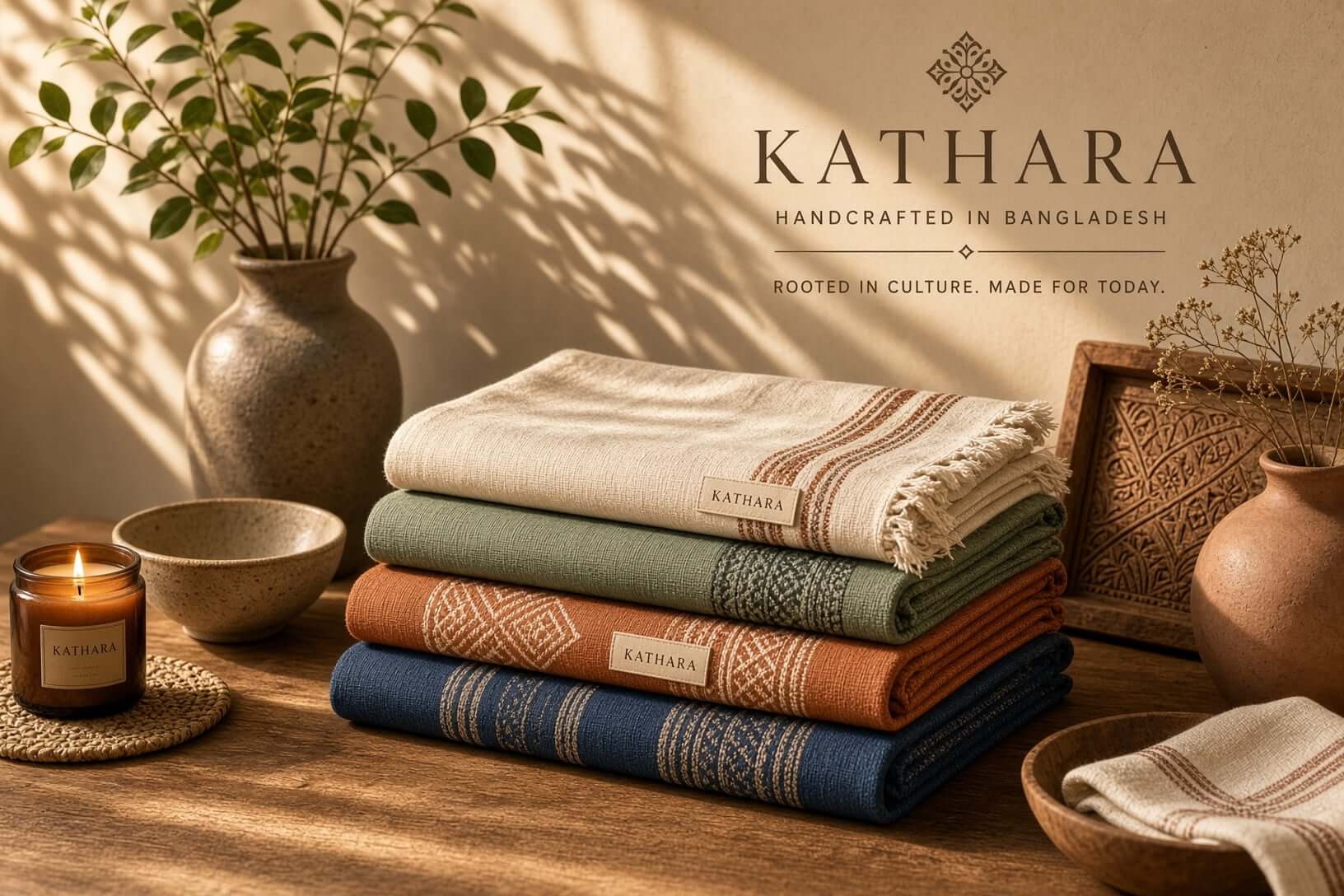
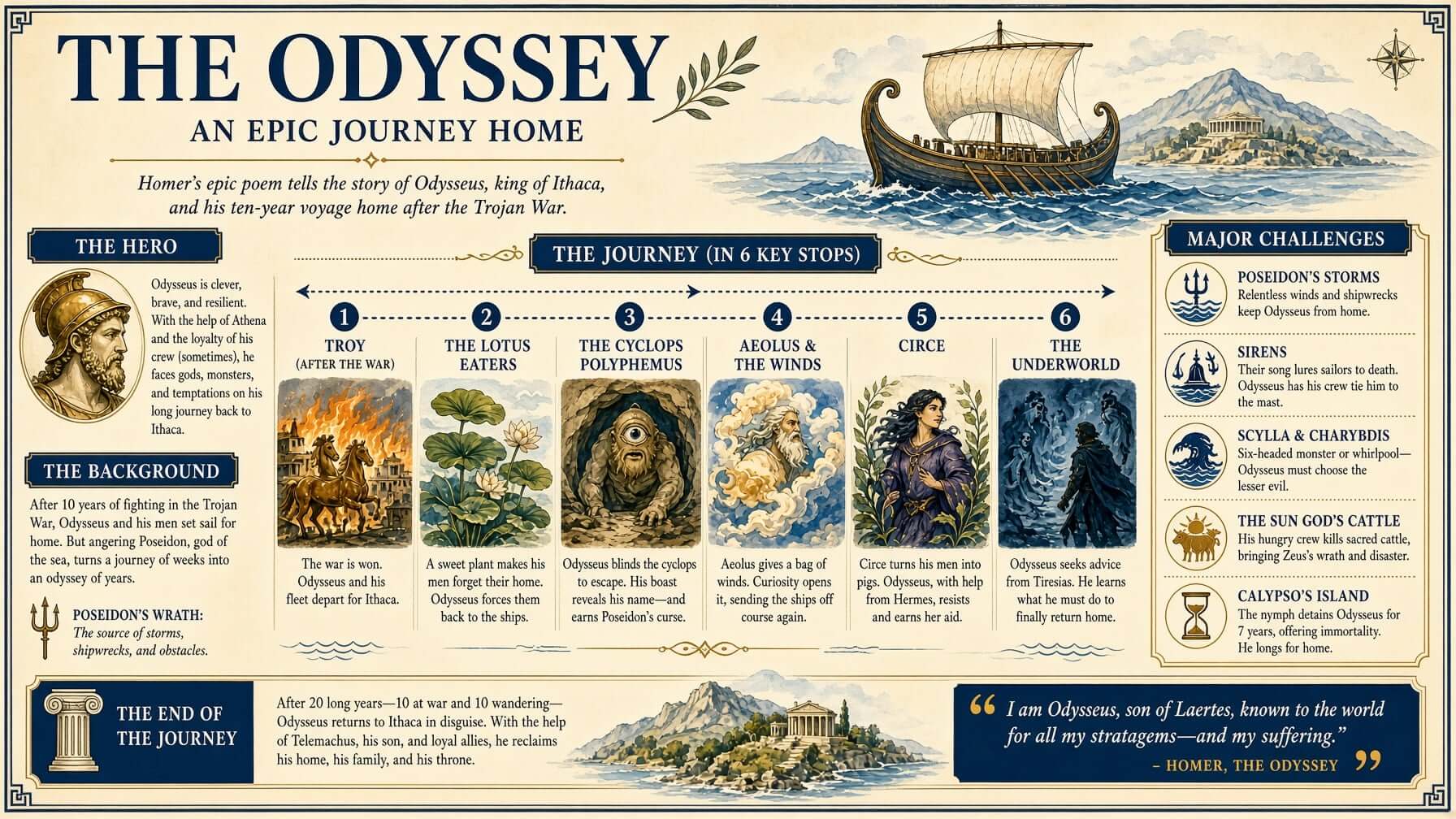
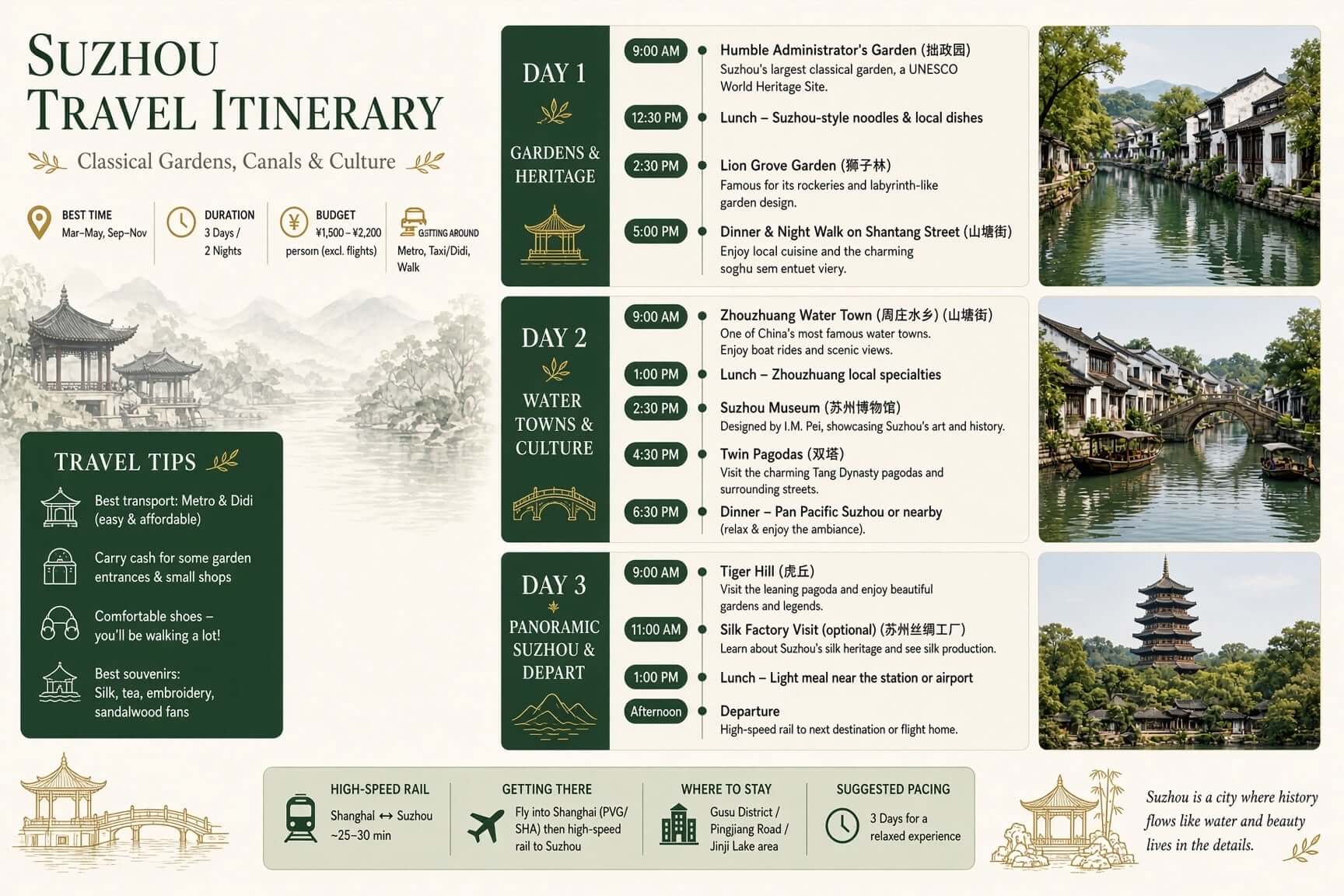
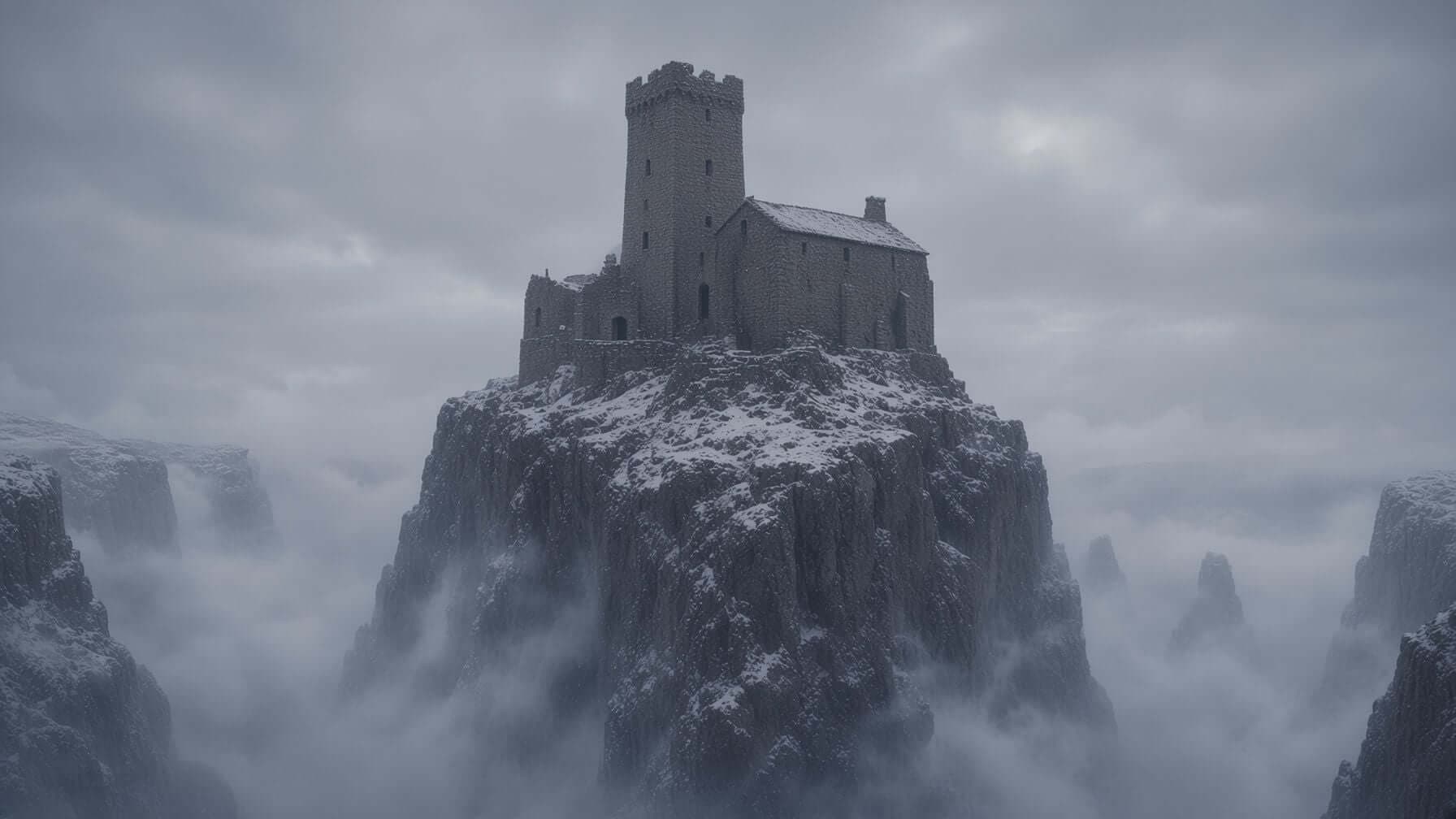
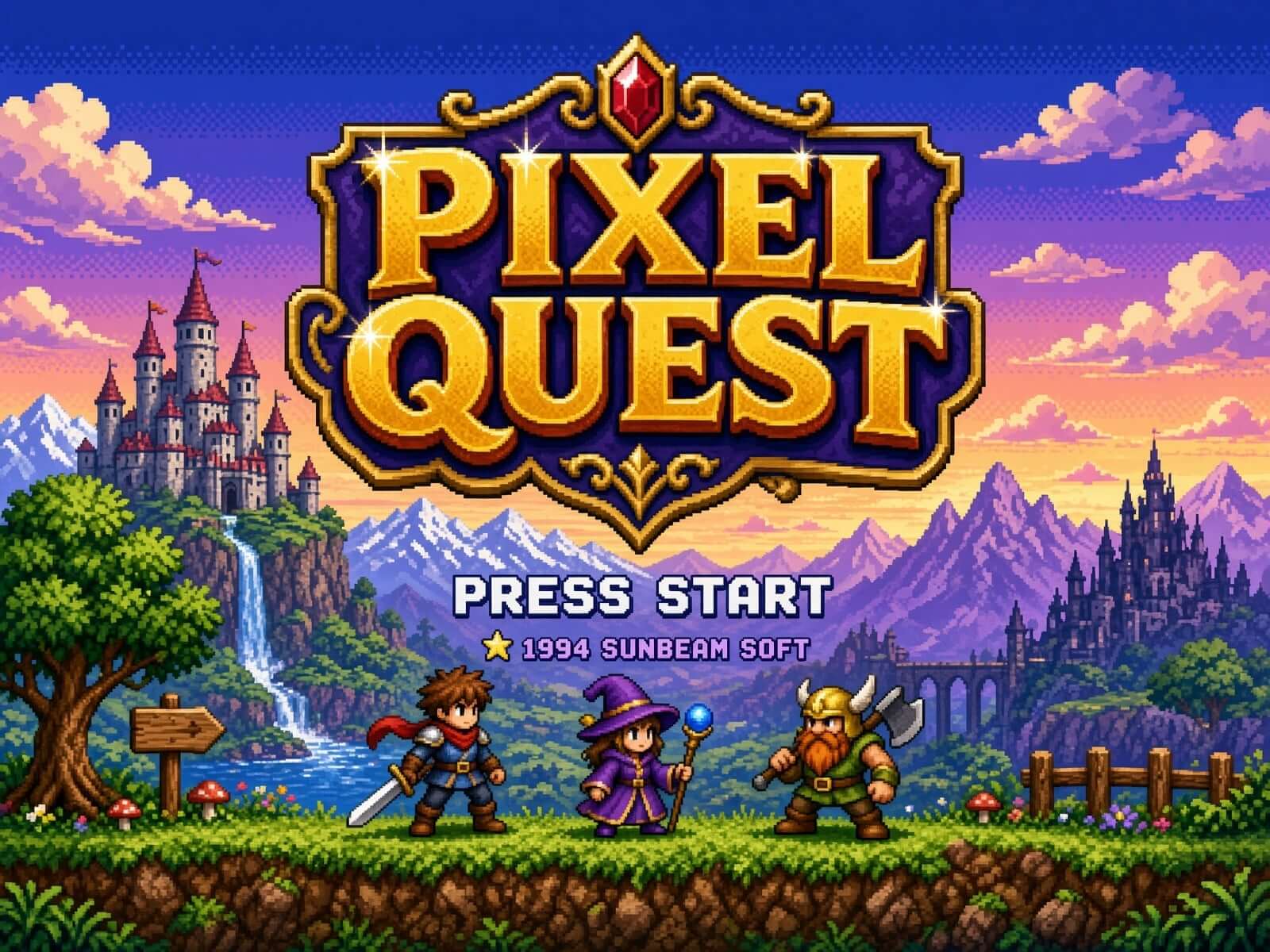
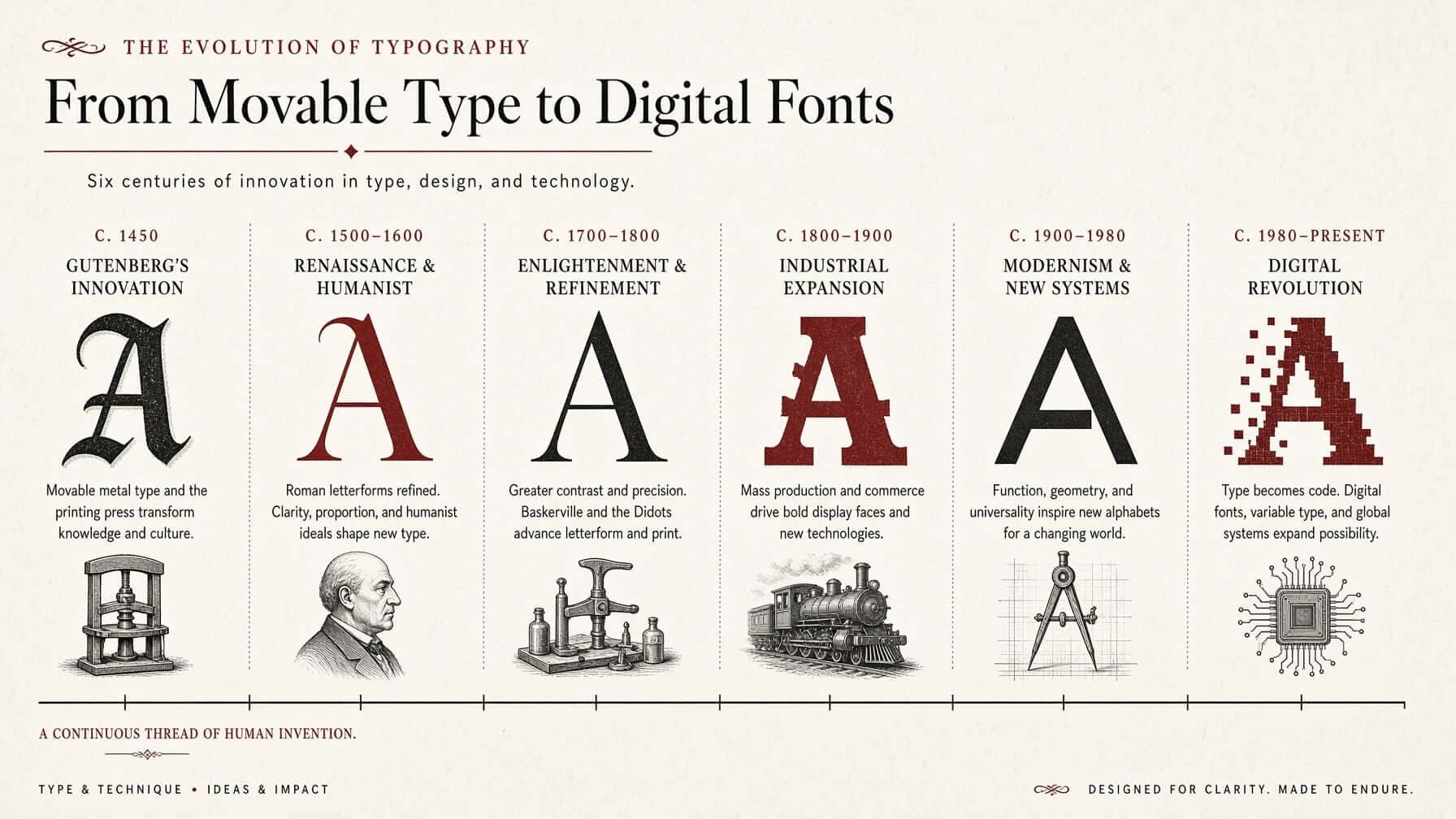
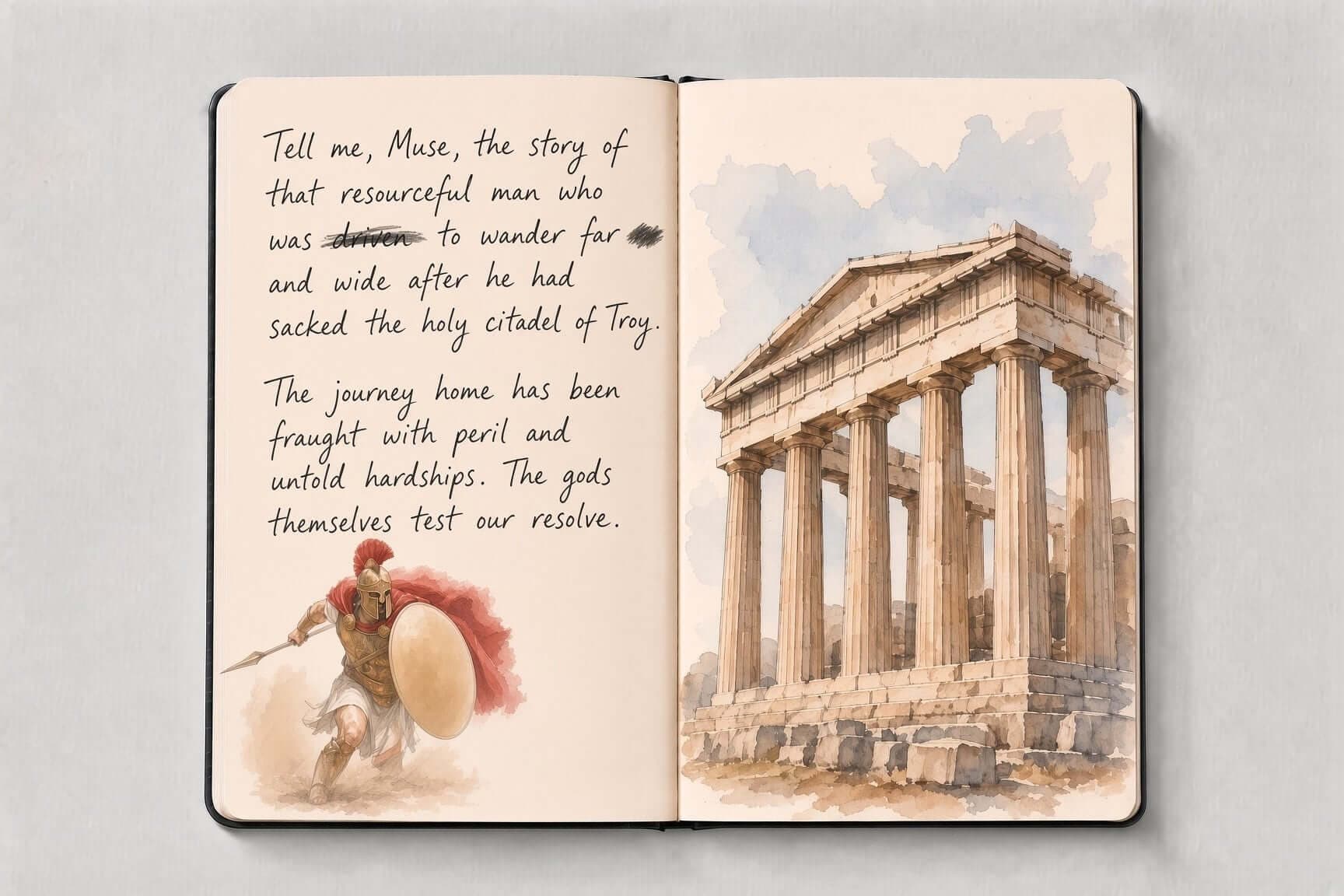
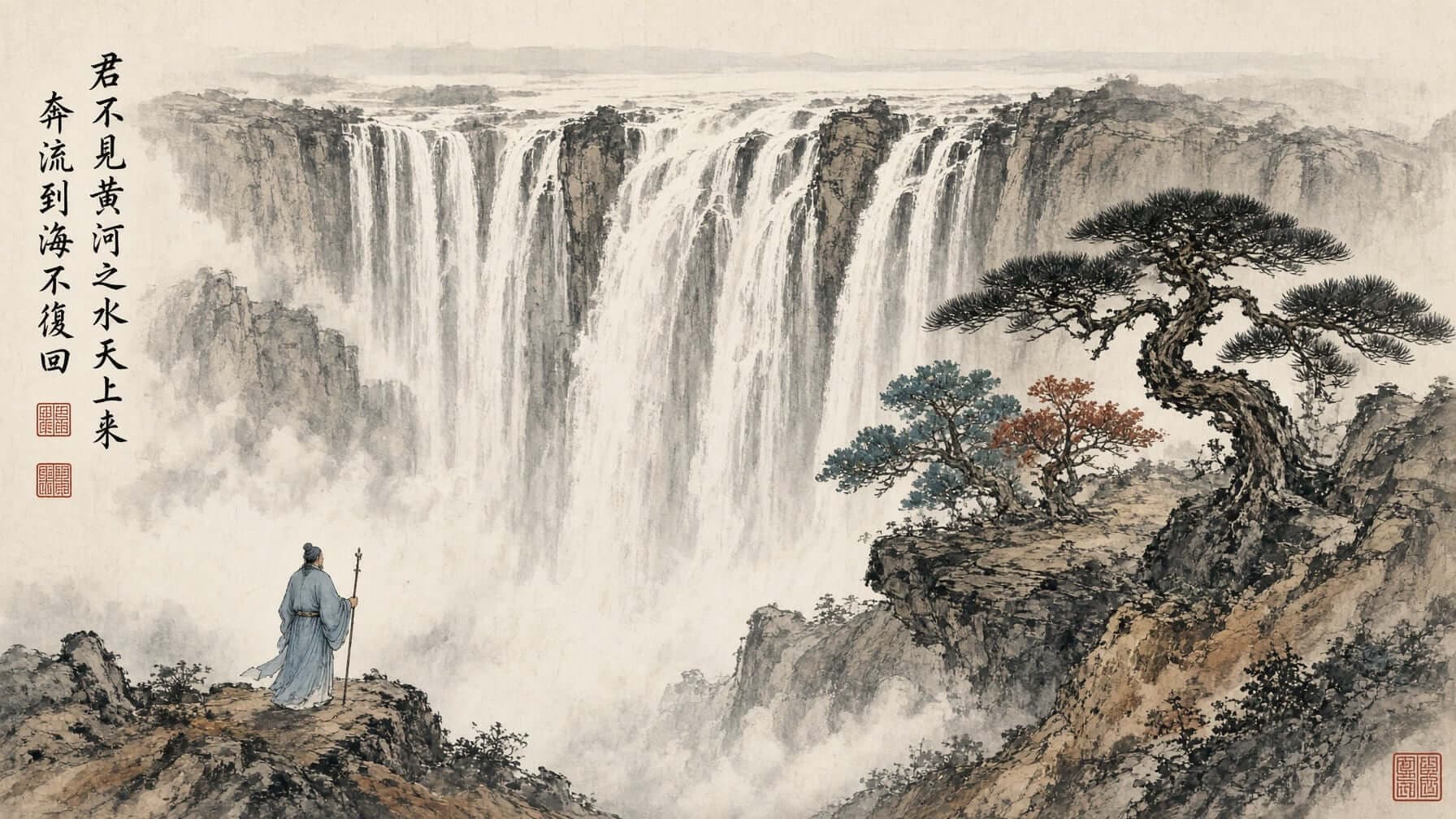
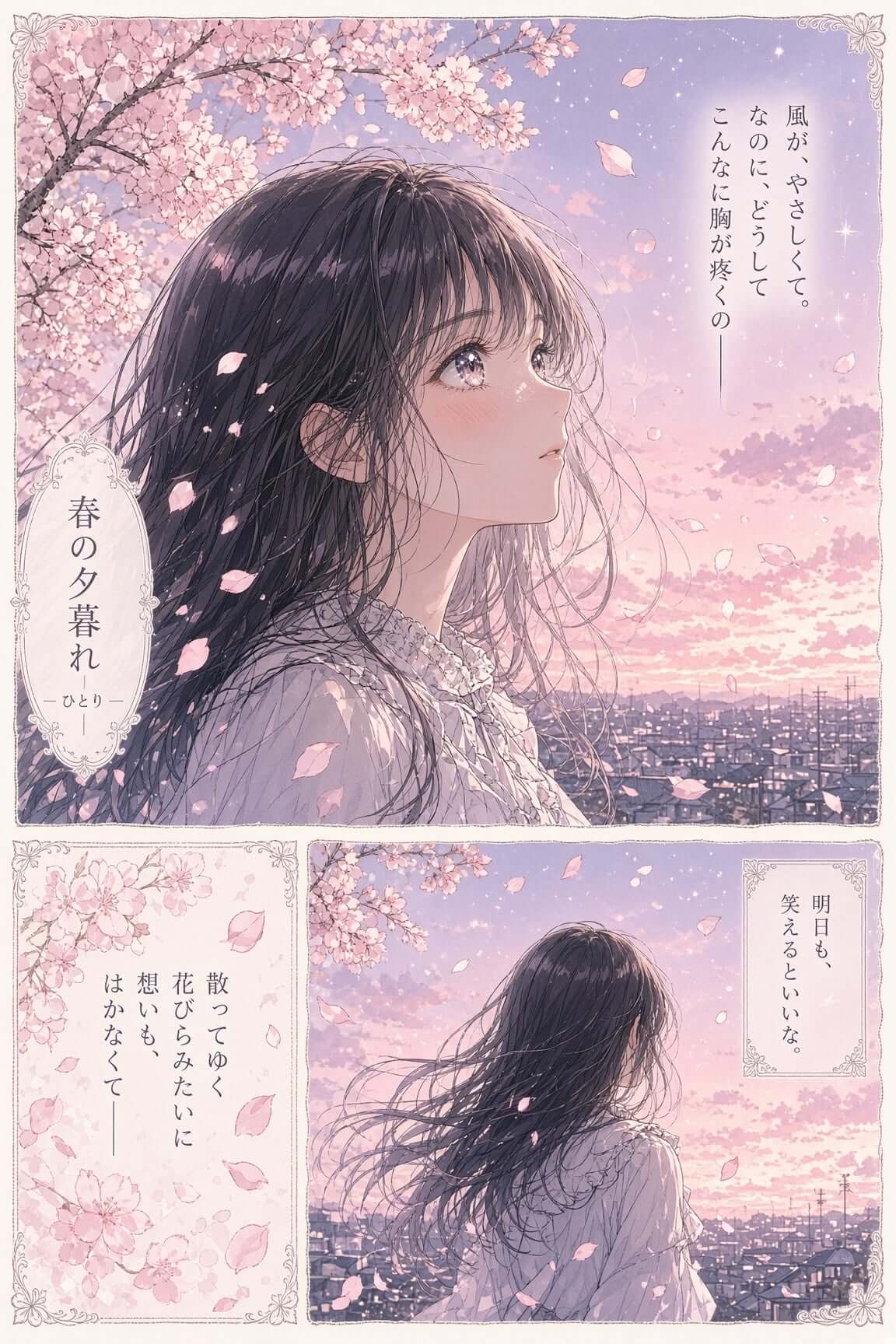
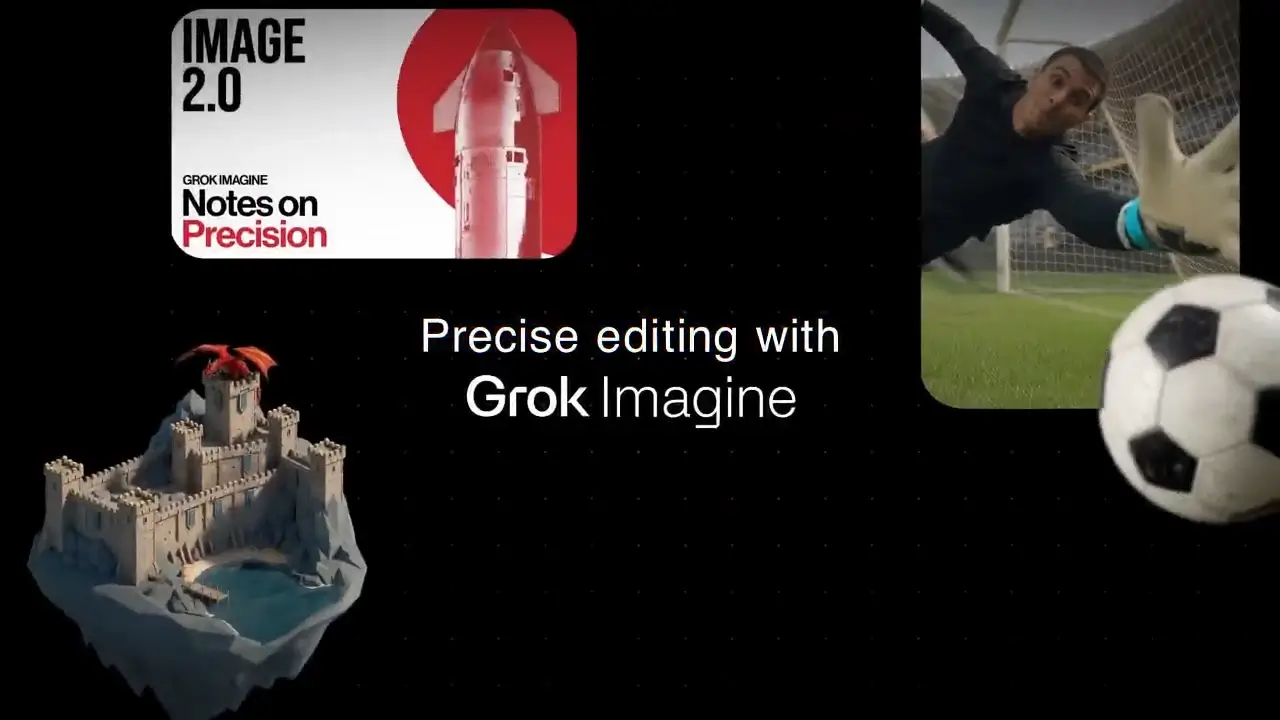
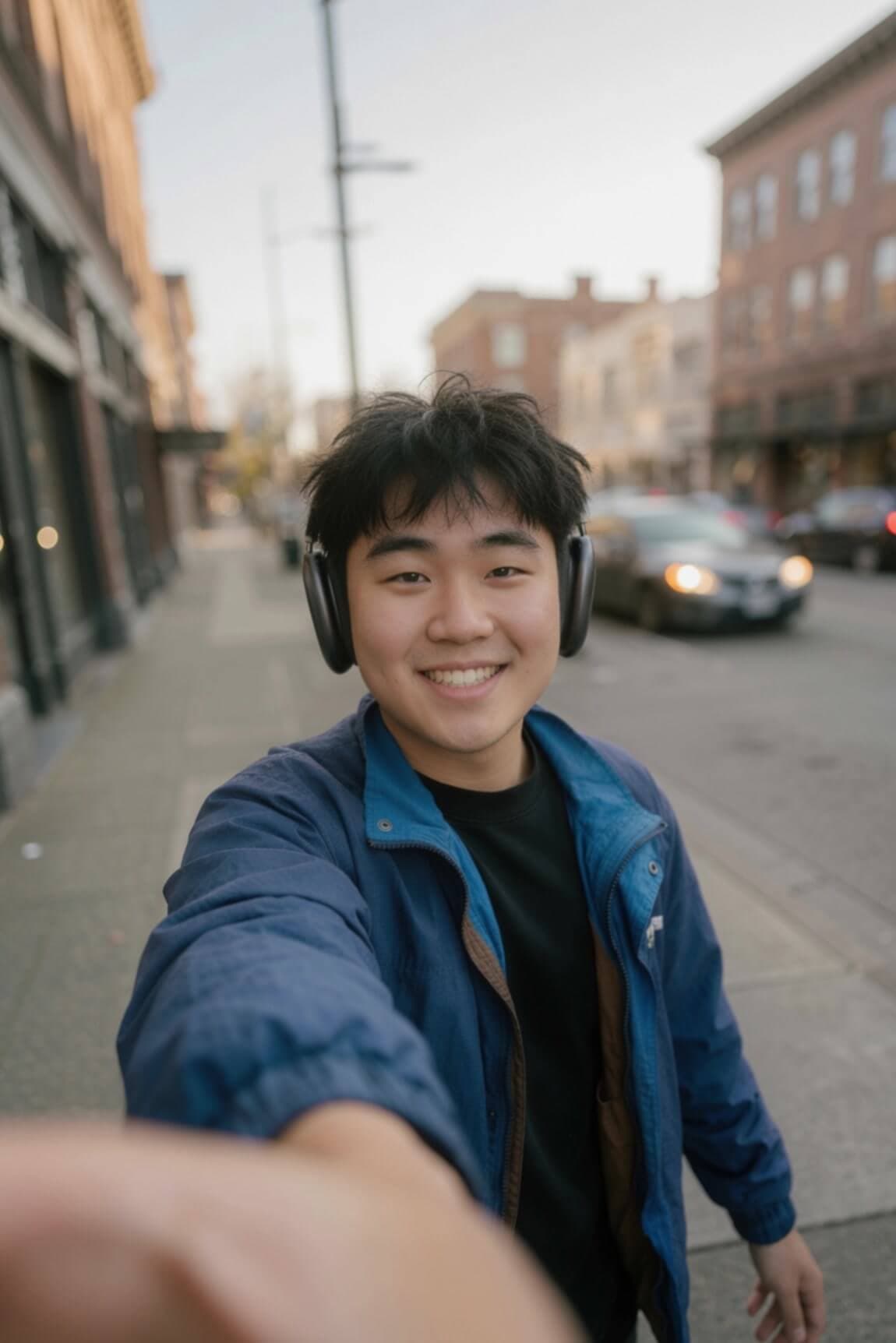
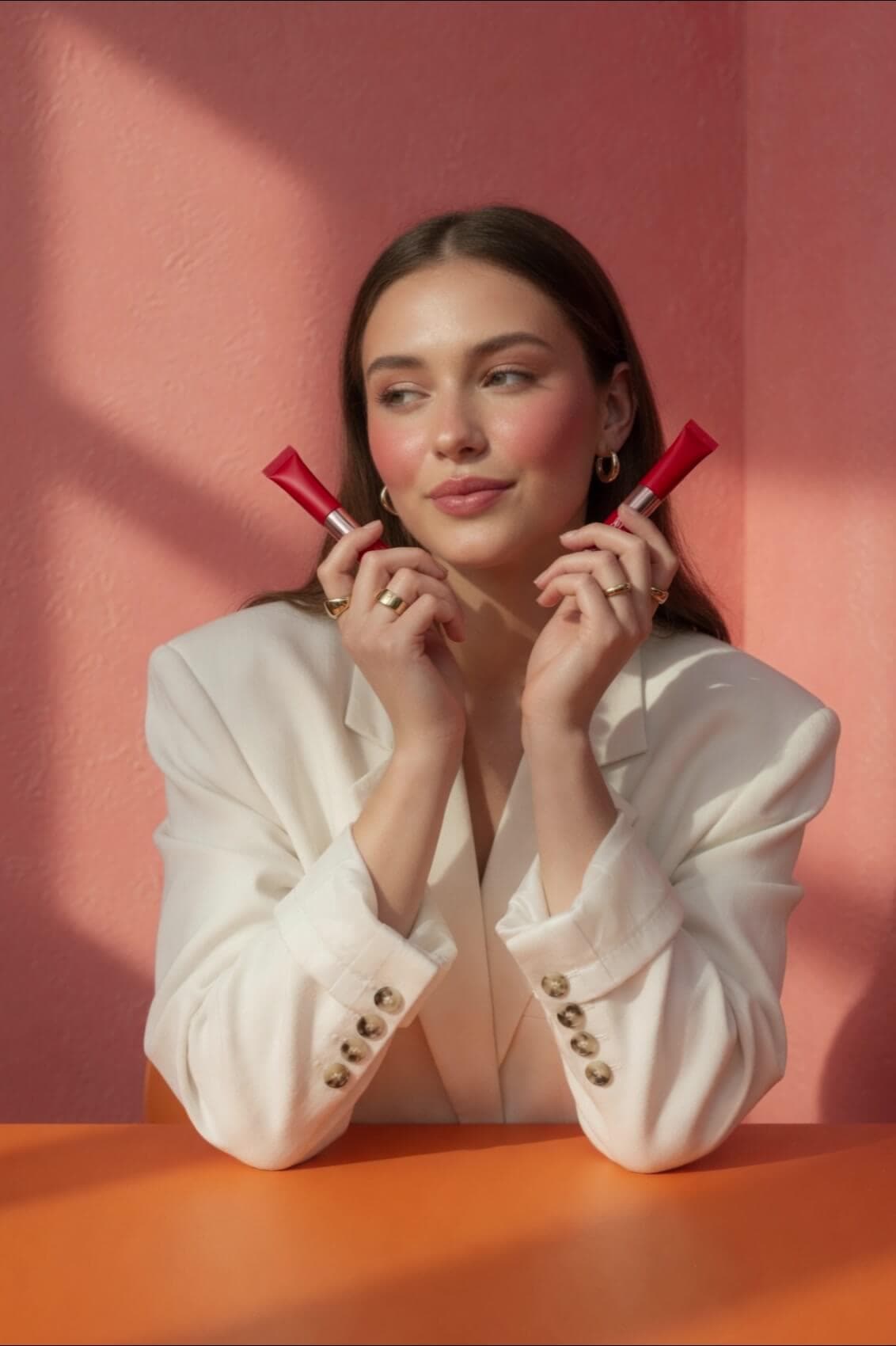
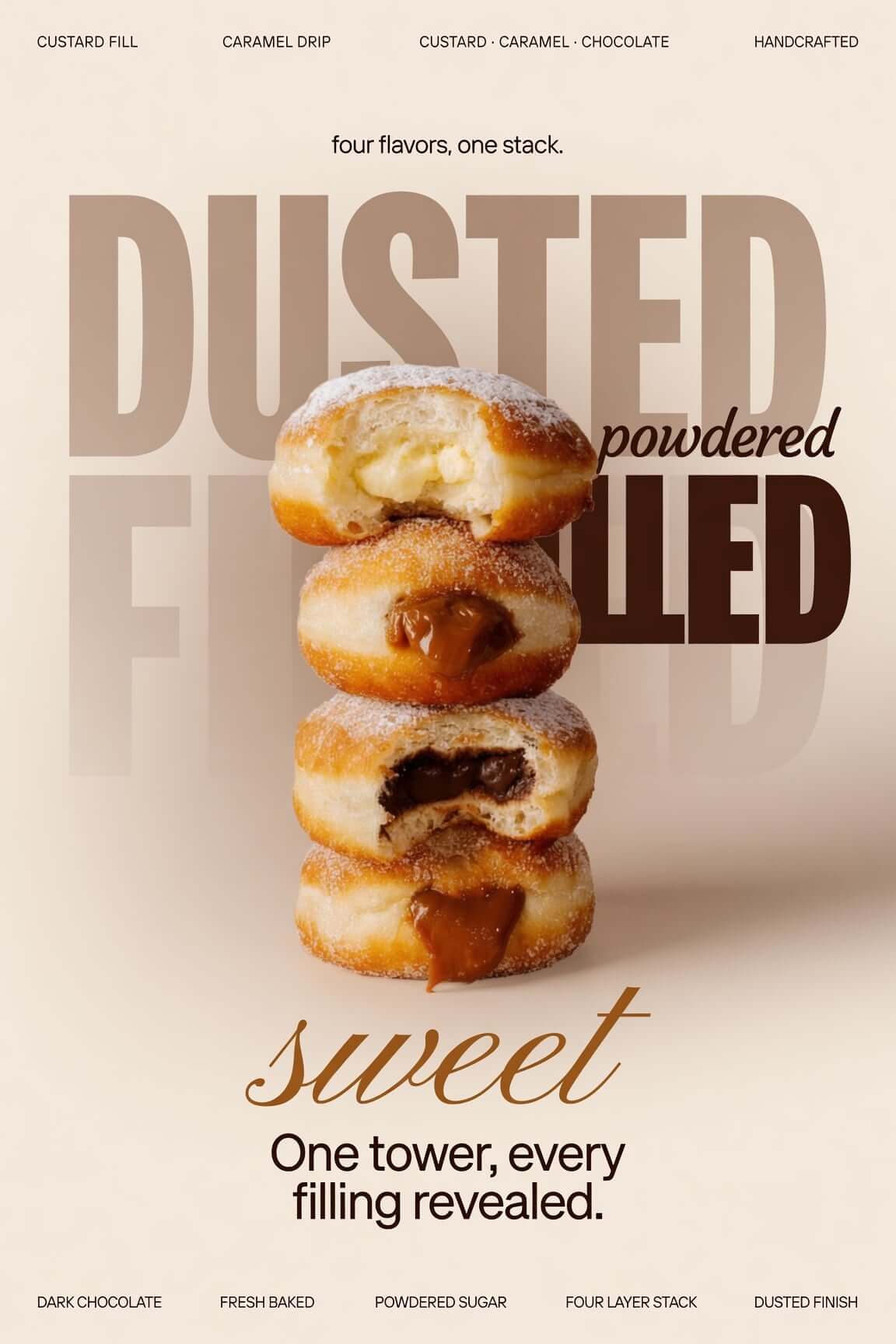
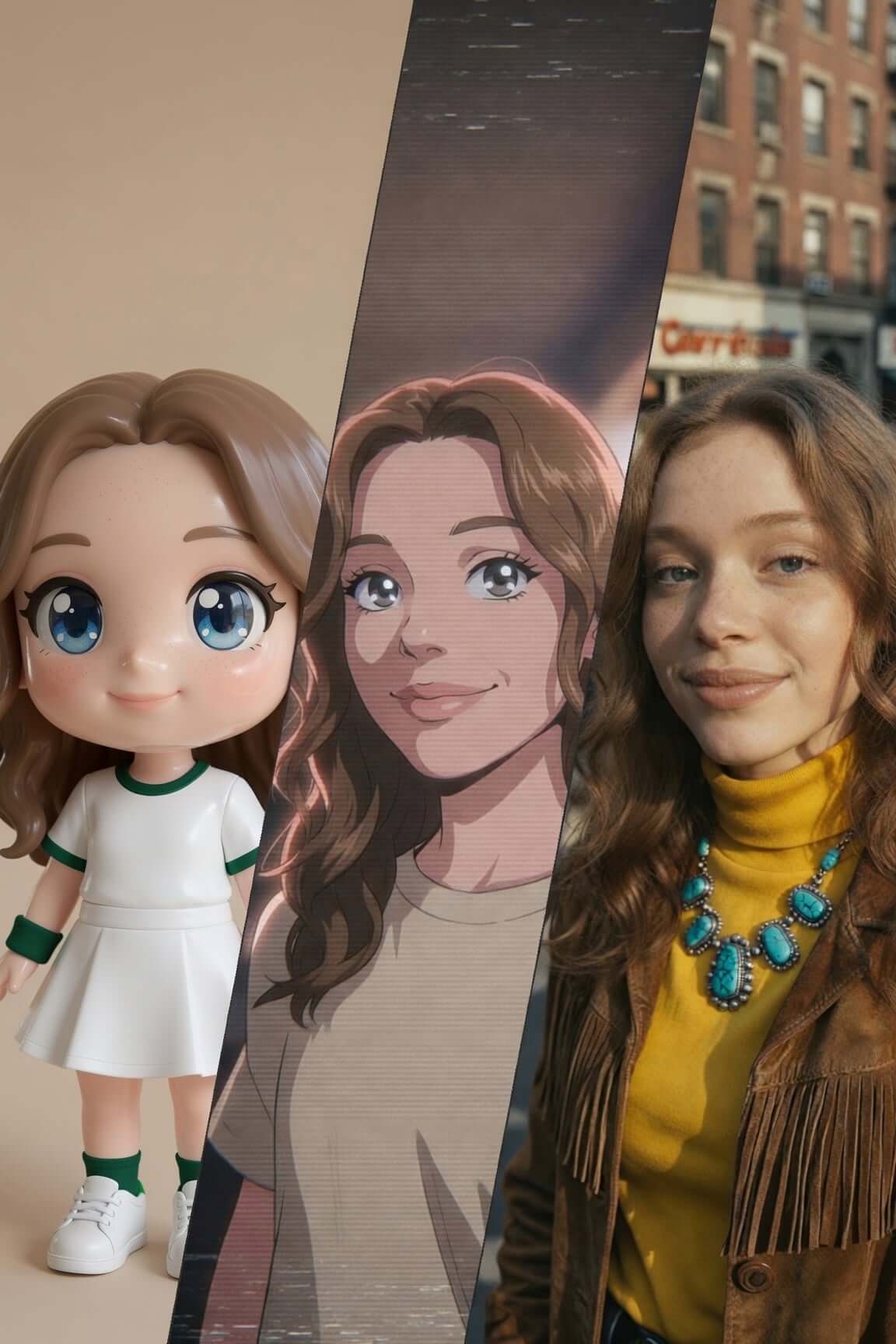
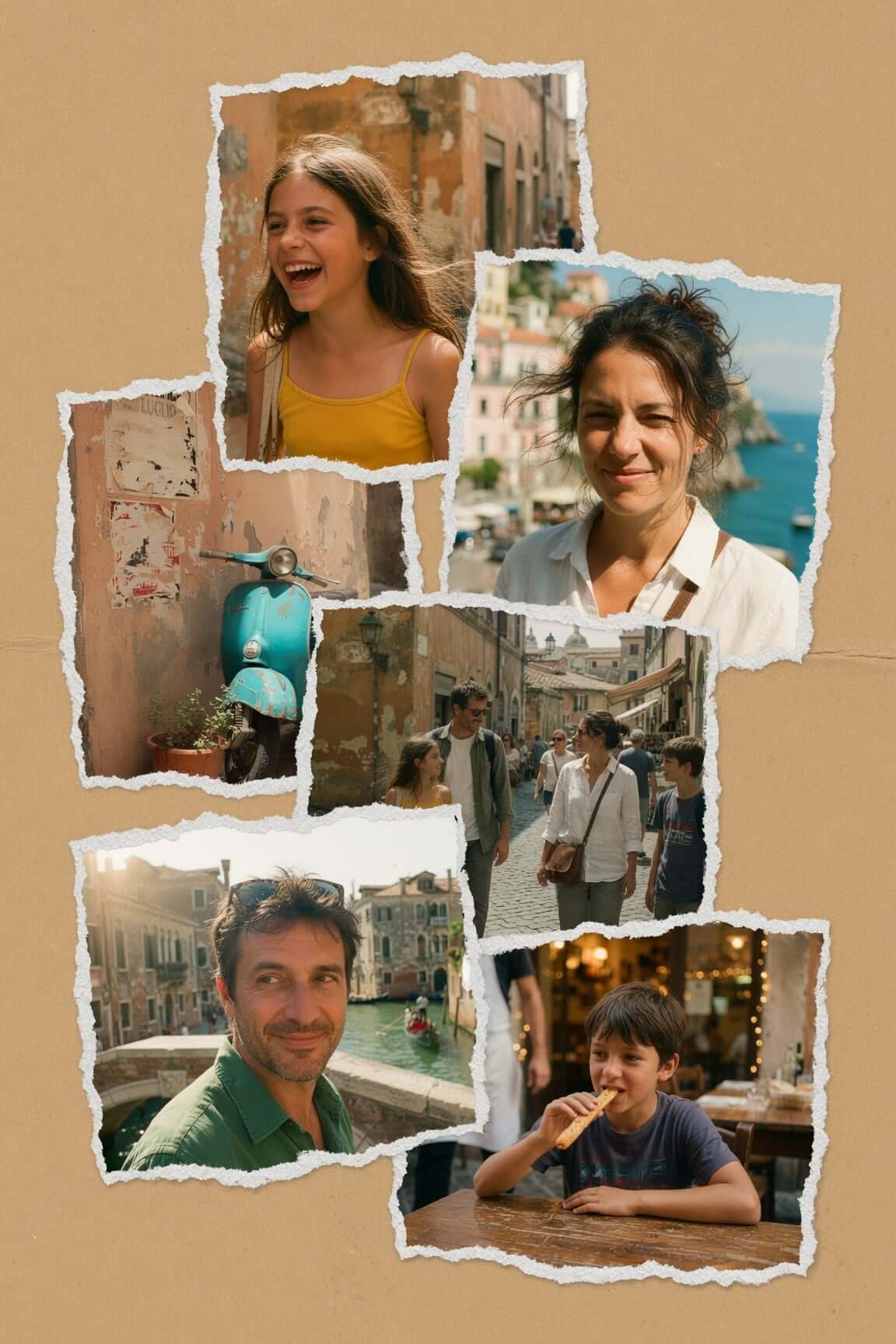
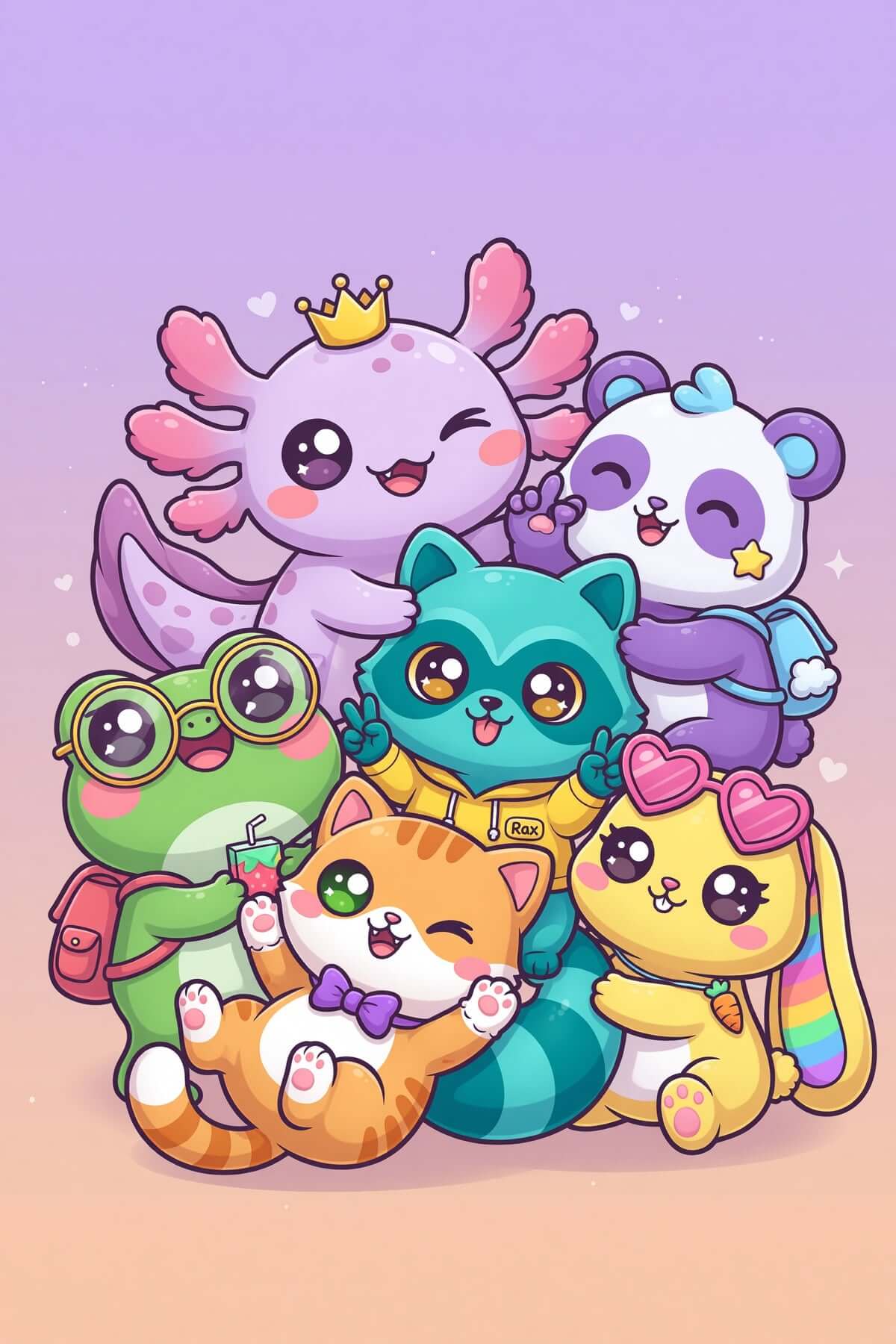
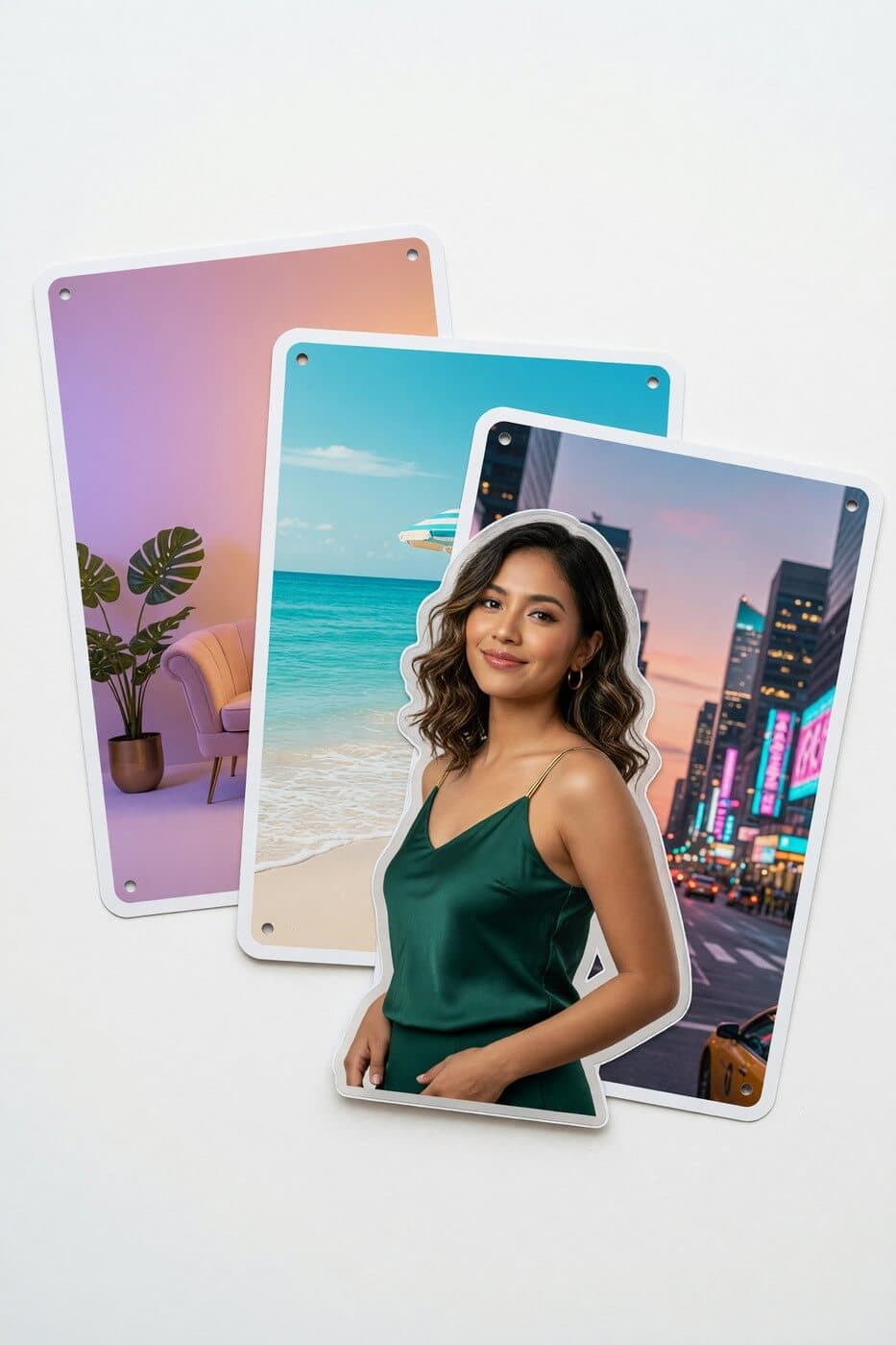
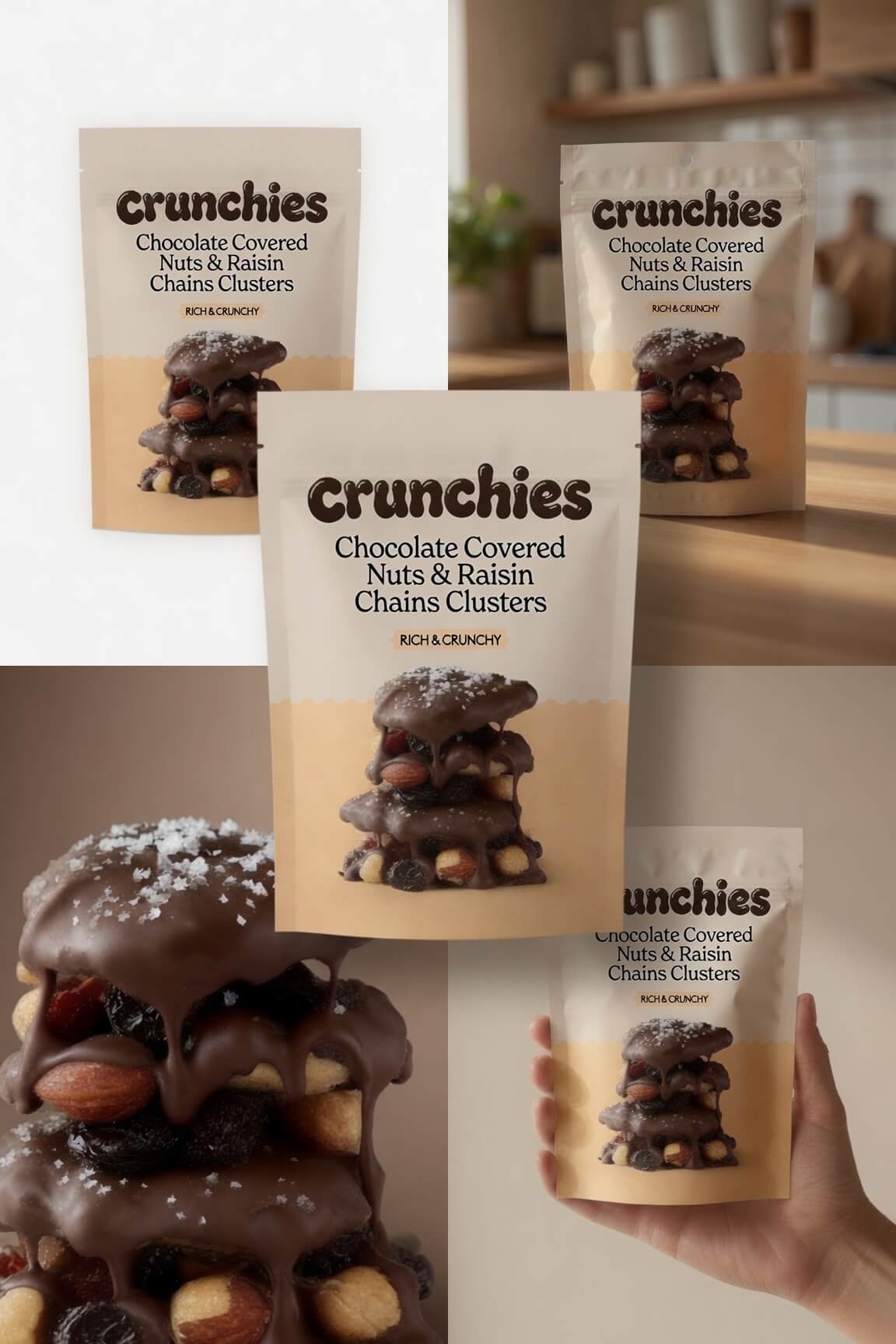
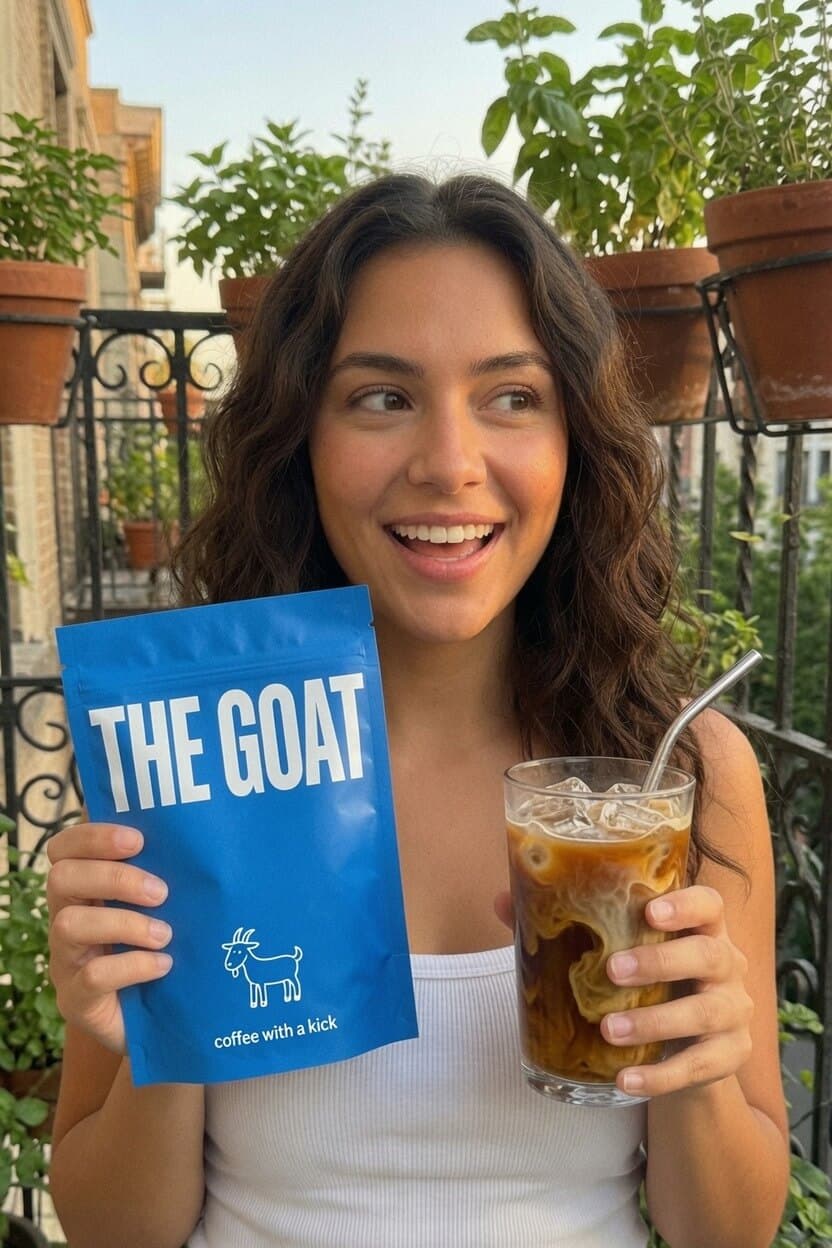
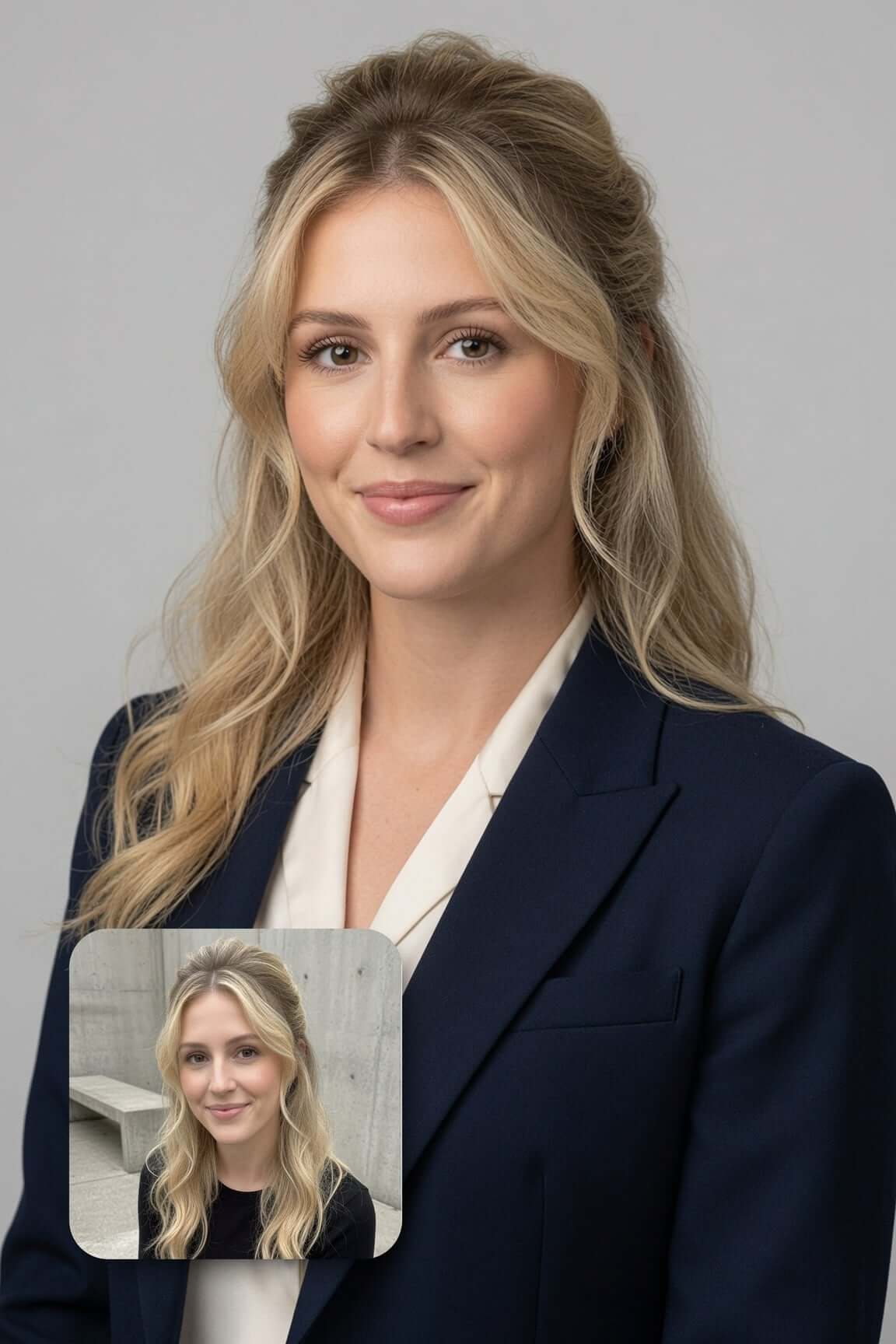
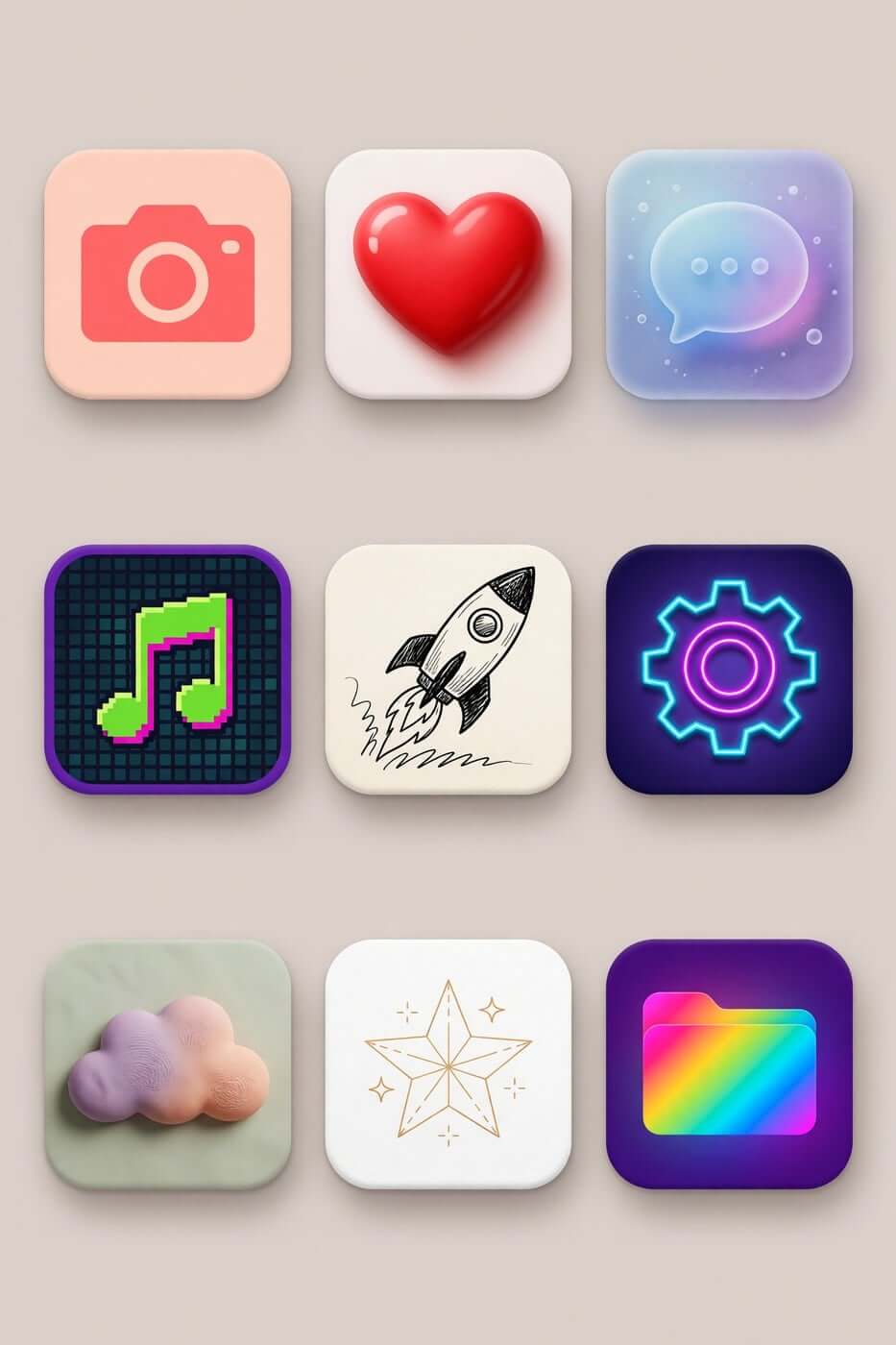
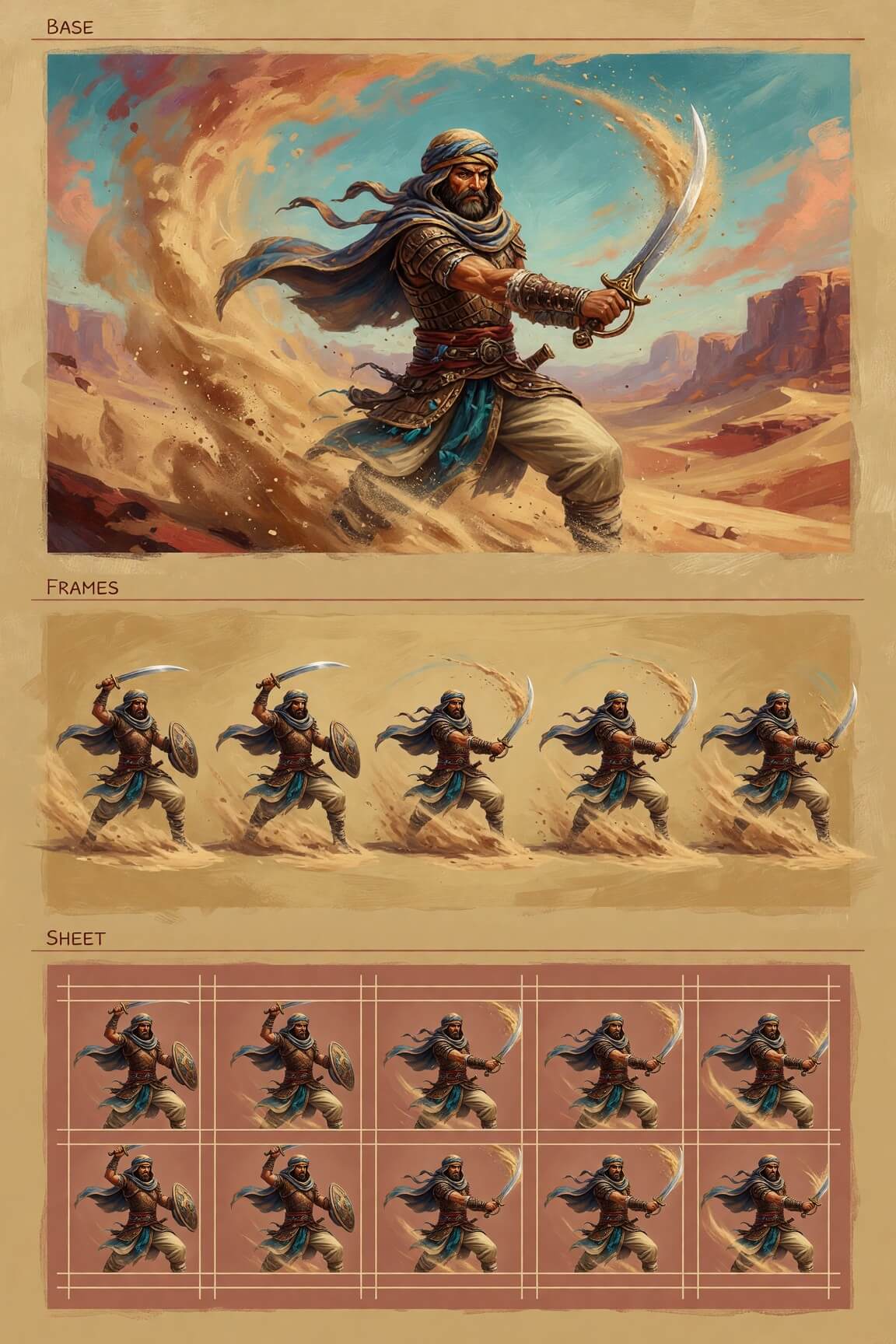
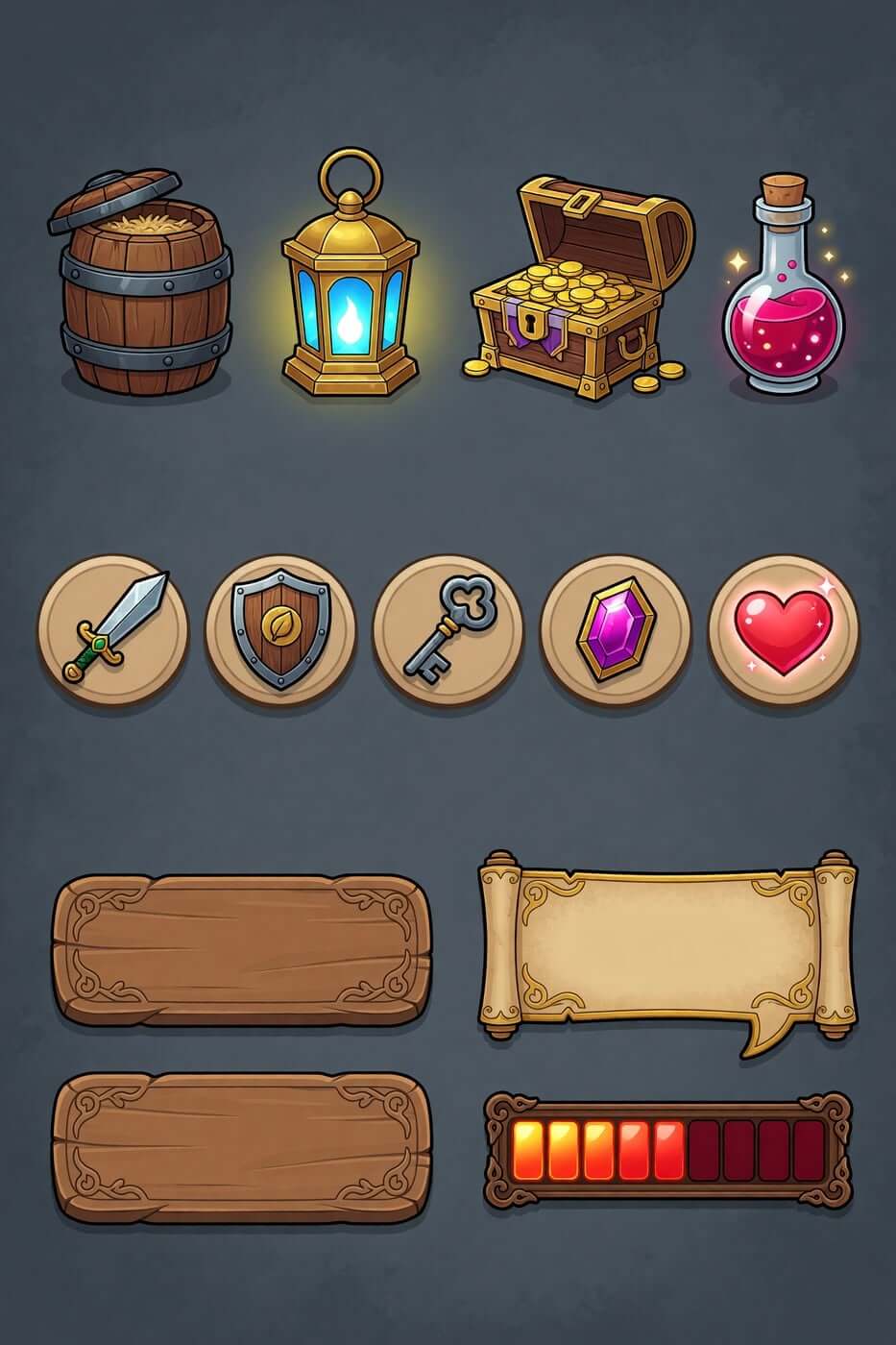
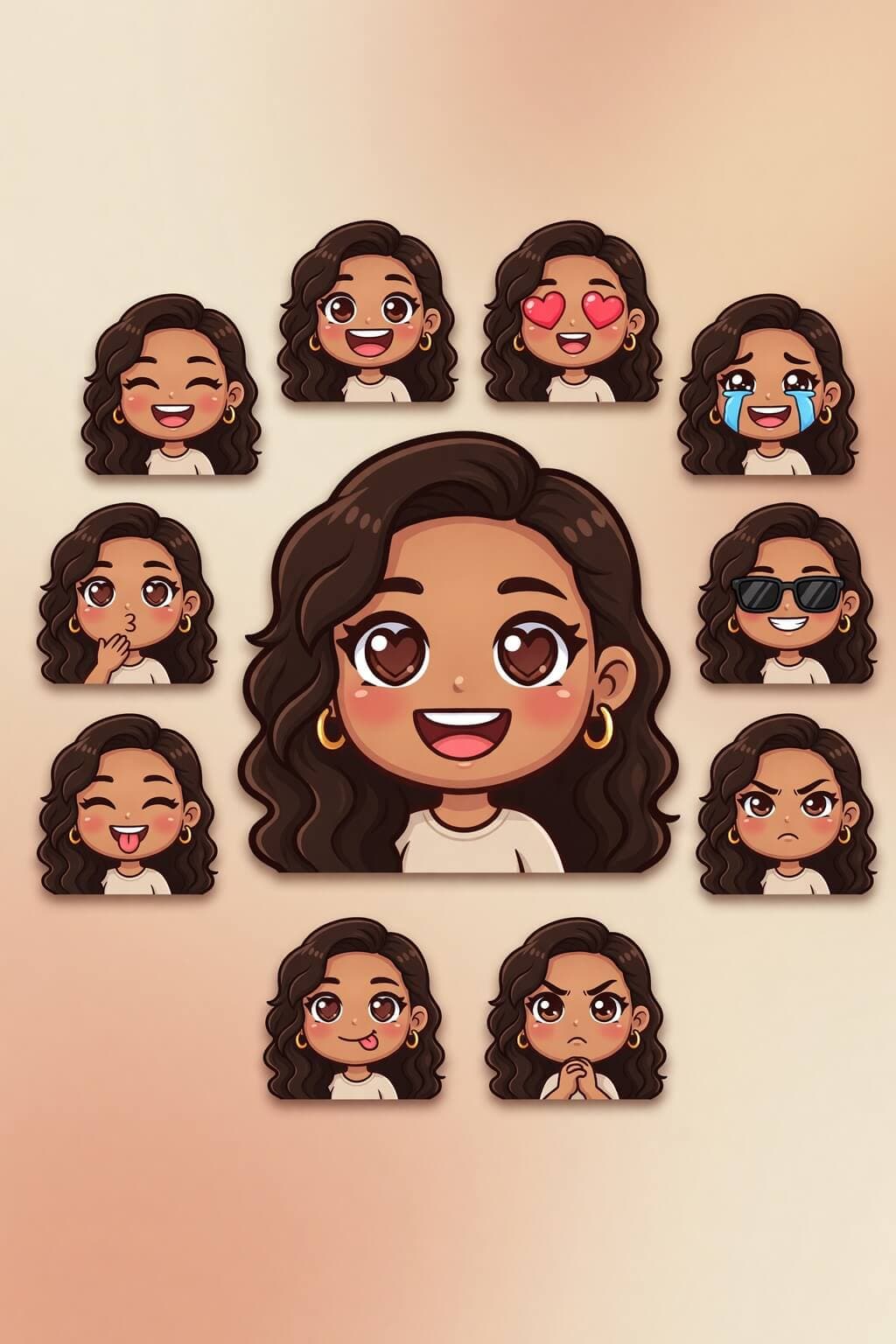
Use Grok Image AI to create visuals from text prompts or transform a reference image, with flexible formats and output up to 2K.
Output quality95
Overview
What Is Grok Image AI?
Grok Image AI is an AI image creation and editing experience that turns text prompts and reference images into new visuals. You describe the result you want, review the output, and continue refining it with plain-language instructions.
Ask it to change an object, adjust the lighting, apply a new visual style, or build a fresh composition from several references. Choose an aspect ratio that fits the intended placement, request multiple images when you need options, and produce images at up to 2K resolution.
Move from a written idea to a controlled visual direction, compare variations, and refine composition, color, camera angle, and style around a real project.
Grok Image AI brings image generation and image editing into the same workflow so you can move from an idea to a more specific, usable asset without starting over after every change.
Generate images from text prompts
Write what should appear in the frame, including the subject, setting, lighting, composition, and mood. Strong prompts name the main subject first, then add environment, camera view, palette, materials, and intended use.
Edit images with natural language
Start with an existing image and describe the change you want. Restyle the source, add or modify details, and create a revised version with one focused instruction at a time.
Refine an image across multiple turns
Use the output of one edit as the input for the next. Establish the scene, adjust details, then refine the final style so each decision is easier to evaluate.
Examples
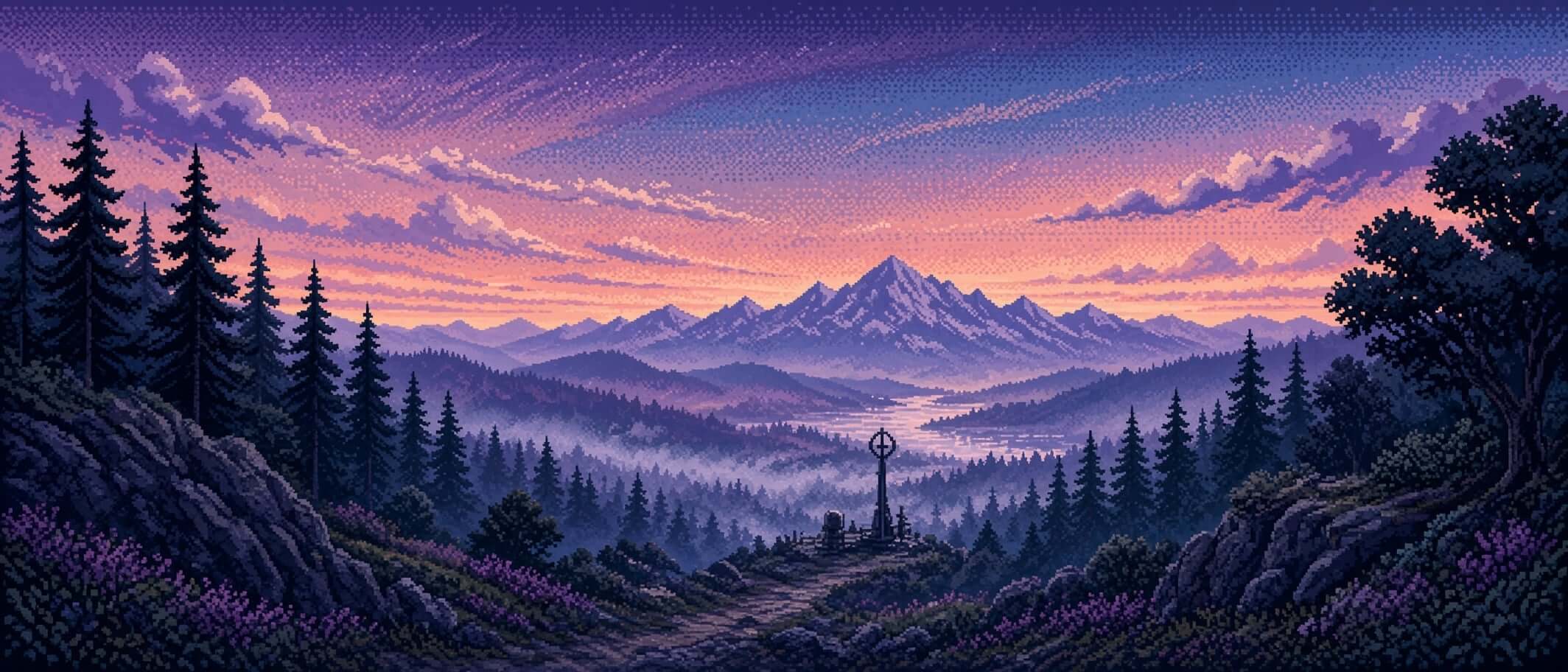
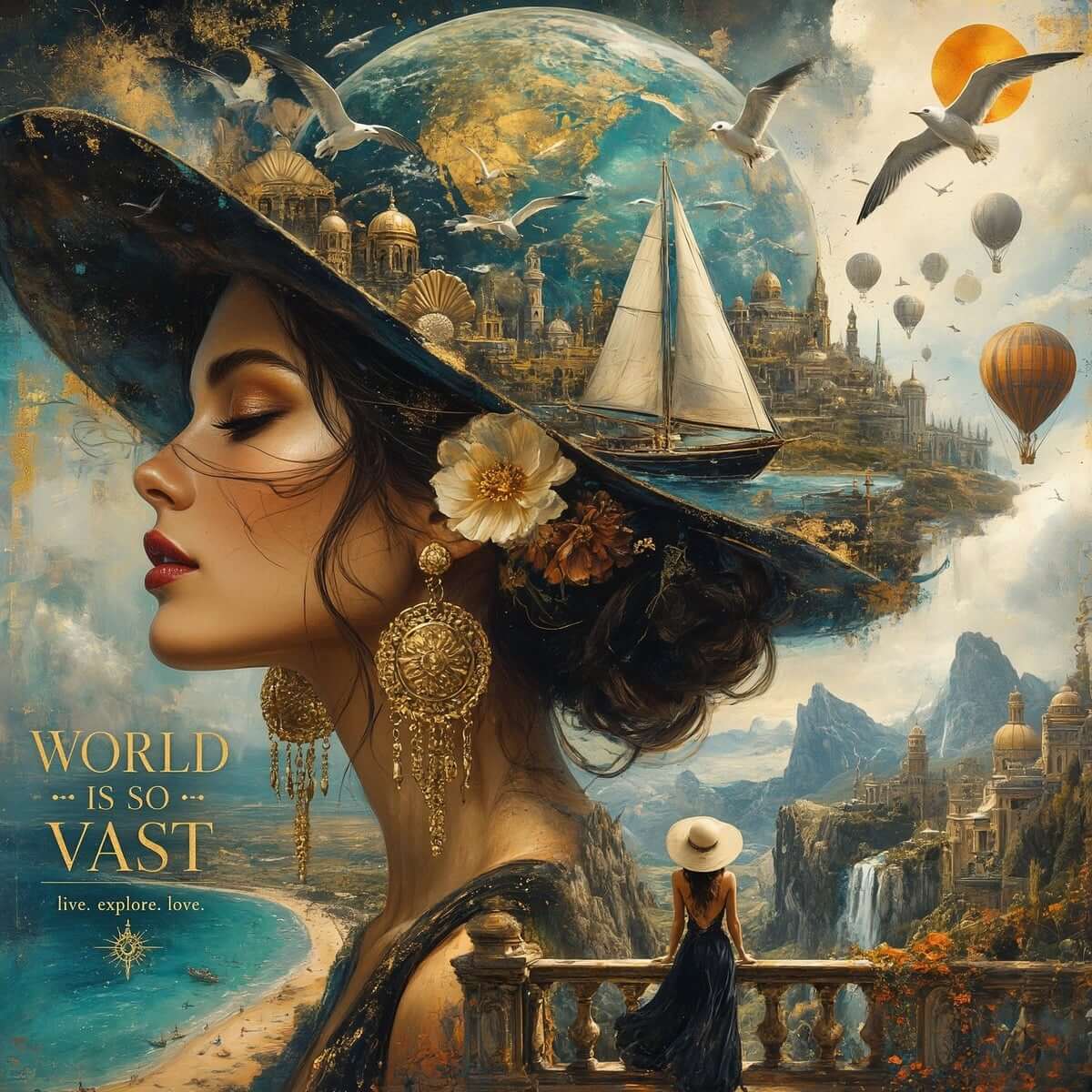
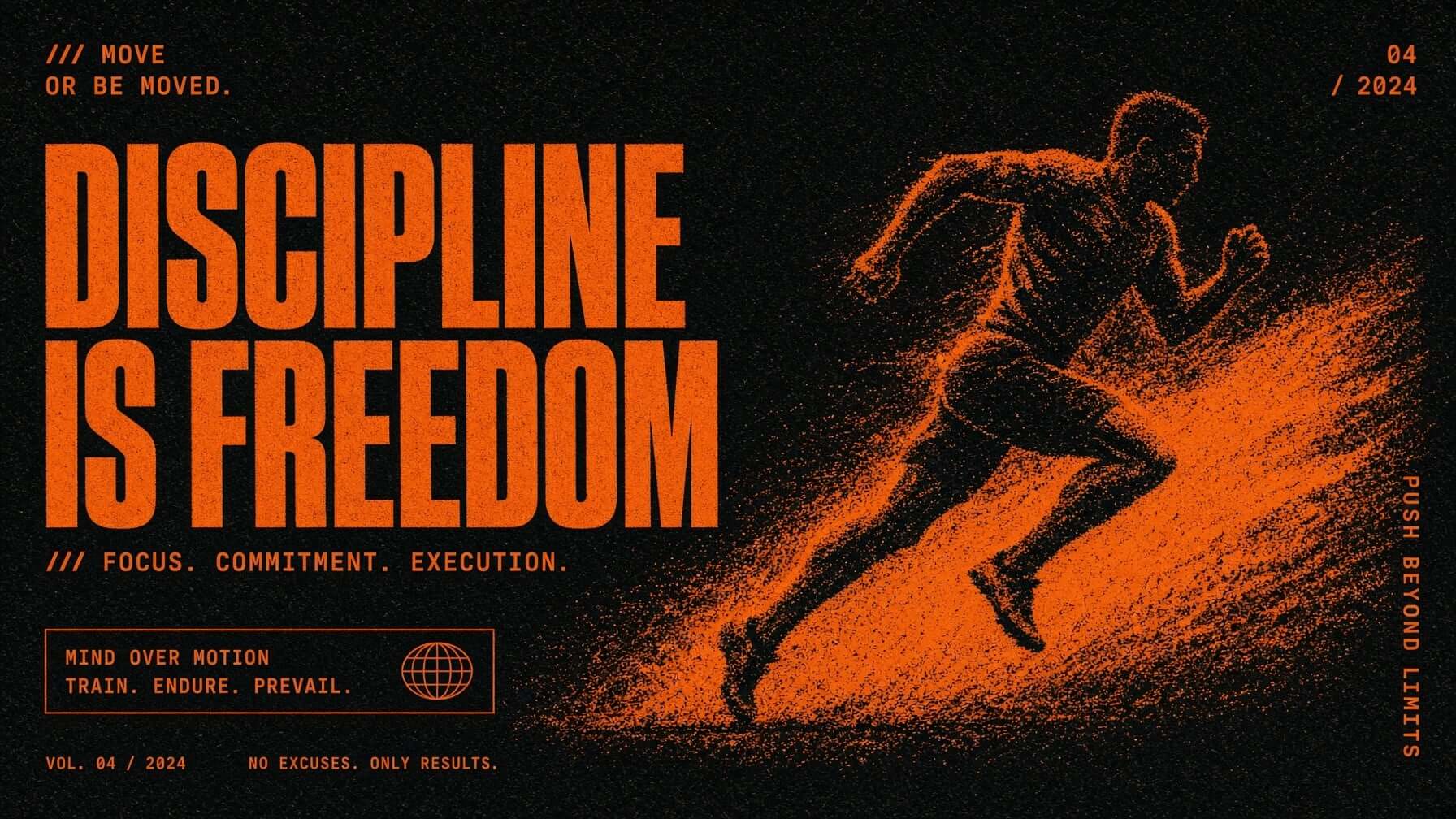
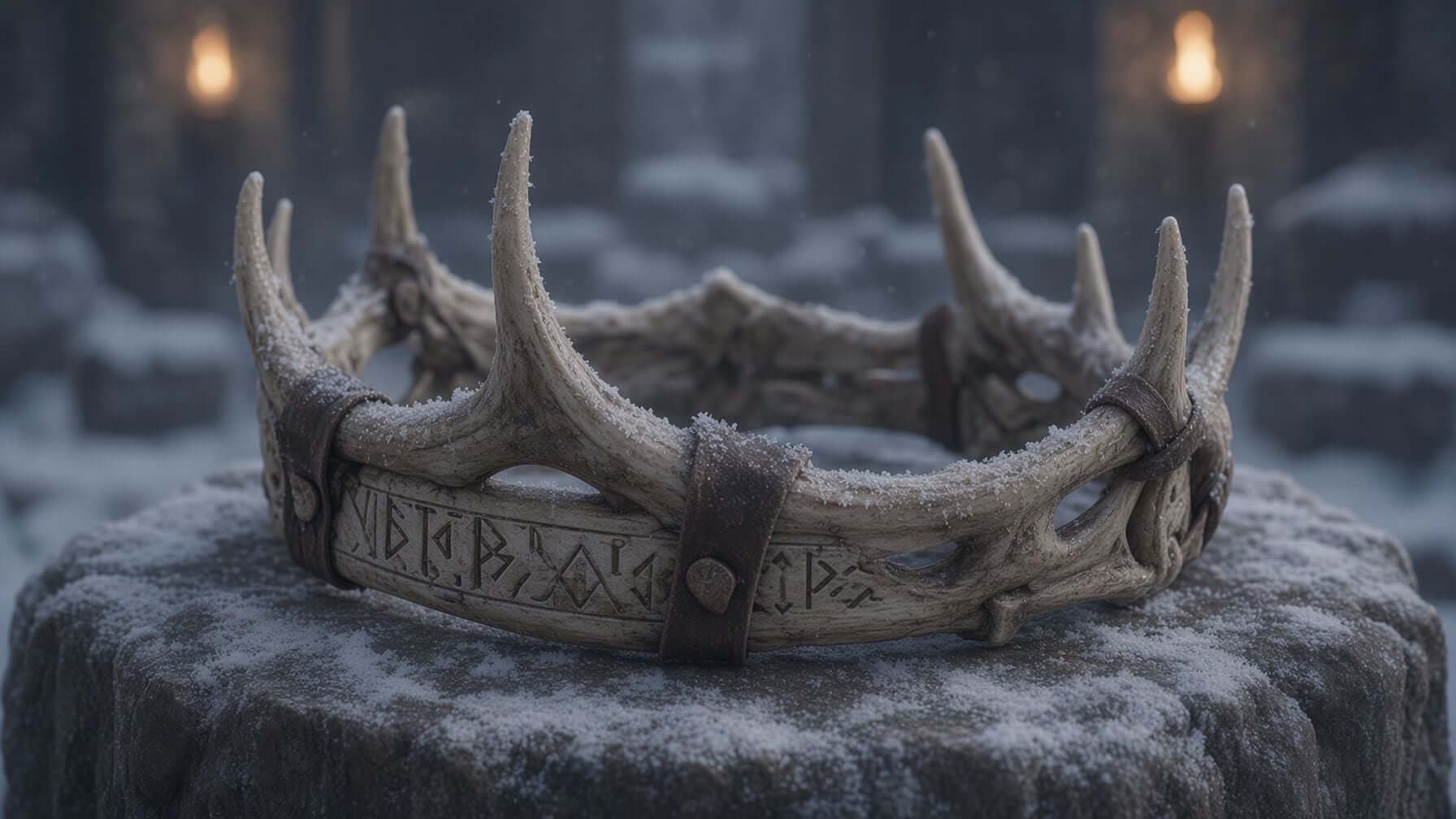
See Grok Image AI examples
Workflow
How to Use Grok Image AI
Start with a prompt or a reference image, then improve the result through short, focused revisions in four clear steps.
01
Choose your starting point
Begin with a written concept when you need a new scene. Upload or select a reference image when you want to preserve an existing subject, composition, product, or style cue.
02
Write a specific visual prompt
Describe the subject, action, environment, framing, lighting, palette, and intended format. Put essential details before decorative ones and avoid conflicting instructions.
03
Set the aspect ratio and resolution
Match the canvas to where the image will appear. Choose the supported resolution you need, up to 2K, and request several outputs when comparing creative directions.
04
Edit the strongest result
Pick the image that best matches your core idea. Ask for one clear revision, review what changed, and continue if needed. Save only after checking details, text, and brand accuracy.
Ready to create
Start with one idea and one intended placement, then refine until the image fits the job.
Open Grok Imagine, enter a visual prompt or add a reference photo, and generate an image. Then ask Grok Image AI to edit the strongest result with a focused follow-up instruction.
Can Grok Image AI generate images from text prompts?+
Yes. Grok Image AI supports text-to-image generation, so you can describe a subject, scene, lighting, composition, and style in writing and receive a generated visual.
Can I edit images with natural language?+
Yes. You can provide a source image and describe the change you want in plain language. Multi-turn editing allows one revised image to become the starting point for the next change.
Can Grok Image AI use multiple reference images?+
Yes. The supported multi-image editing workflow accepts at least two source images and uses your prompt to describe how their subjects or visual cues should be combined.
Create With Grok Image AI
See the complete feature guide, examples, workflow, use cases, comparison, and practical prompt advice.