Explore Seedream 5.5 for product images, expressive posters, and creative photo edits. Shape your ideas with detailed prompts, visual references, and your own distinct style.
Seedream 5.5 is coming soon!
IMAGE WORKSPACE
Currently creating with Seedream 5.0 Pro
Reference Images
0/10
ModelSeedream 5.0 Pro
1424 × 800
Cost: free
CREATIVE CONCEPT
IMAGE INSPIRATION
Moon Jazz poster
Suggested prompt · editable
Design a wide jazz concert poster on an ultramarine background. Crop a large white moon photograph at the upper right. Set the headline exactly as ‘MOON JAZZ’, with smaller lines ‘FRIDAY / 8 PM’ and ‘UNDER THE NIGHT SKY’. Add one thin orange rule. Use an asymmetric grid and clear white typography.
01
What Is Seedream 5.5?
Seedream is ByteDance’s family of AI image generation and editing models. It helps you turn written ideas and visual references into images, then refine them through natural-language instructions.
Start with a description of what you want to see: a product on a studio backdrop, a cinematic portrait, or an illustrated poster. Describe the subject, composition, lighting, and style to give your image a clear creative direction.
Reference images give that direction a visual starting point. Use them to guide the look of a scene or begin an edit, then describe what should change and what should stay. You might request a different background, warmer lighting, or a new color palette.
Explore the Seedream 5.5 examples below for ideas you can adapt to product visuals, posters, and everyday design projects. Start with one concept, compare variations, and refine the details that matter to your final image.
02
Explore the Seedream 5.5 Image Creation Toolkit
Explore transparency, focused edits, readable layouts, and deliberate lighting. Build a specific brief around each previewed capability, then review the details that matter to your finished asset.
Reusable assets with transparent edges
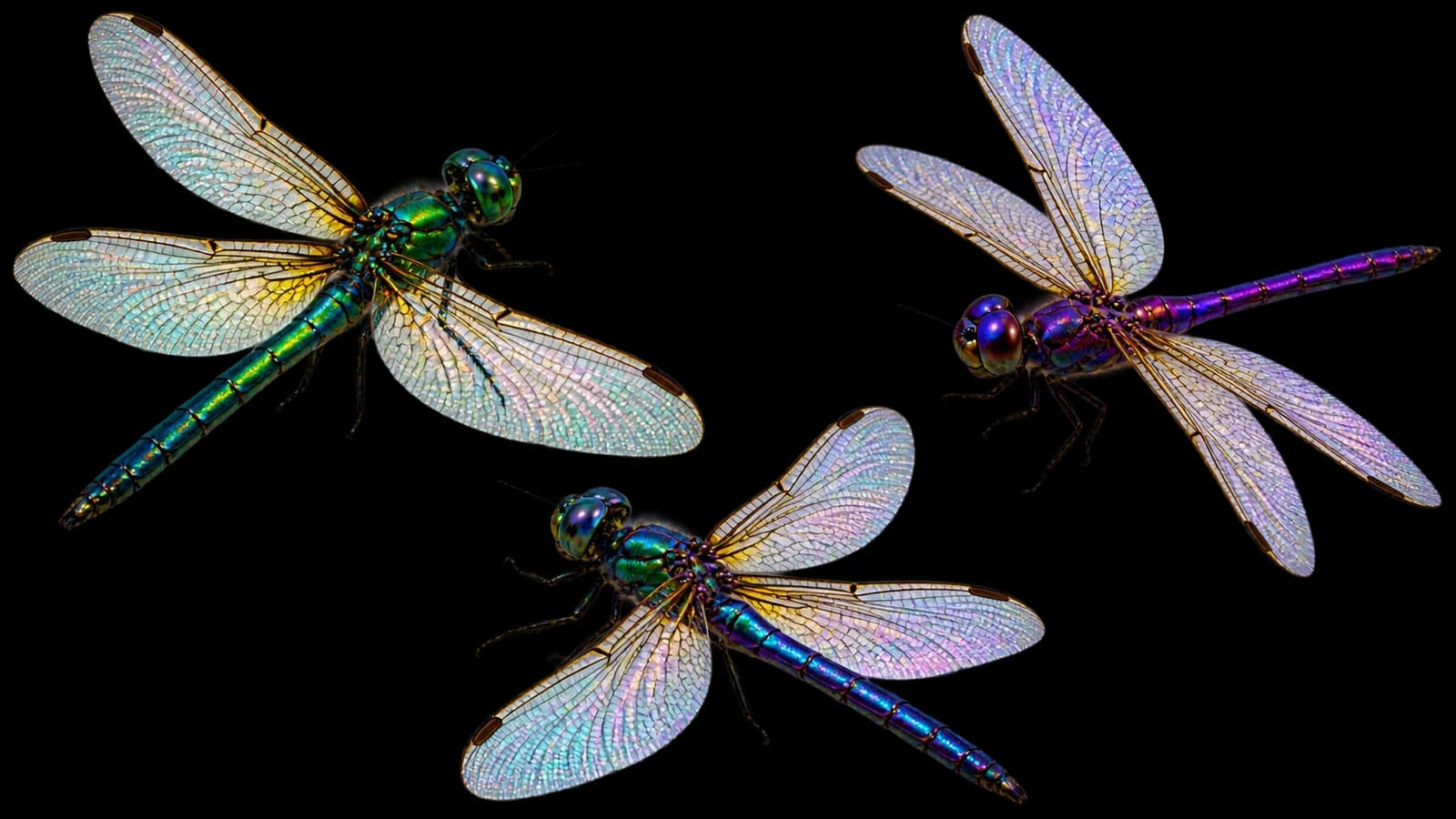
RGBA generation includes partial transparency. Try a macro dragonfly whose thin wing membranes transmit light while its body stays opaque. Specify the delicate veins, antennae, and feet separately. Inspect the exported asset against both light and dark backgrounds to check the fine edges and transparent areas.
Product edits that preserve the original shape
Targeted editing lets you describe a change to part of an image. For example: “Add orange-and-black geometric graphics to the helmet shell. Keep its vents, visor, silhouette, and camera angle.” Use the original view as a reference and check whether the new graphics follow the curved surface.
Headlines and supporting copy in one layout
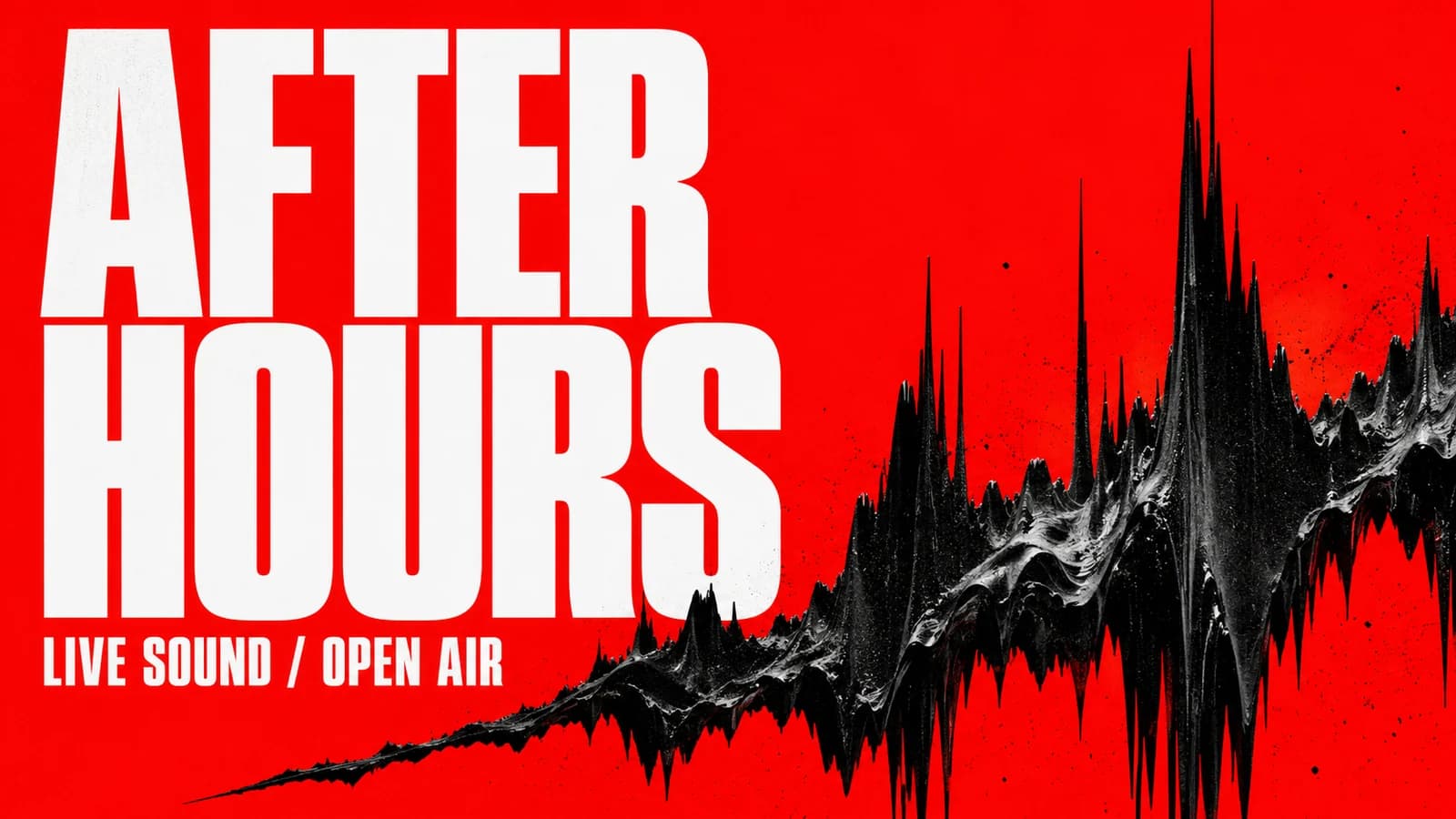
Complex text layouts are part of the preview. Treat your wording as supplied content: write out the exact headline, price, date, and smaller line. Give each a location and a relative size. Do not ask an image model to invent factual product details while also designing the composition.
Portrait lighting with a sense of place
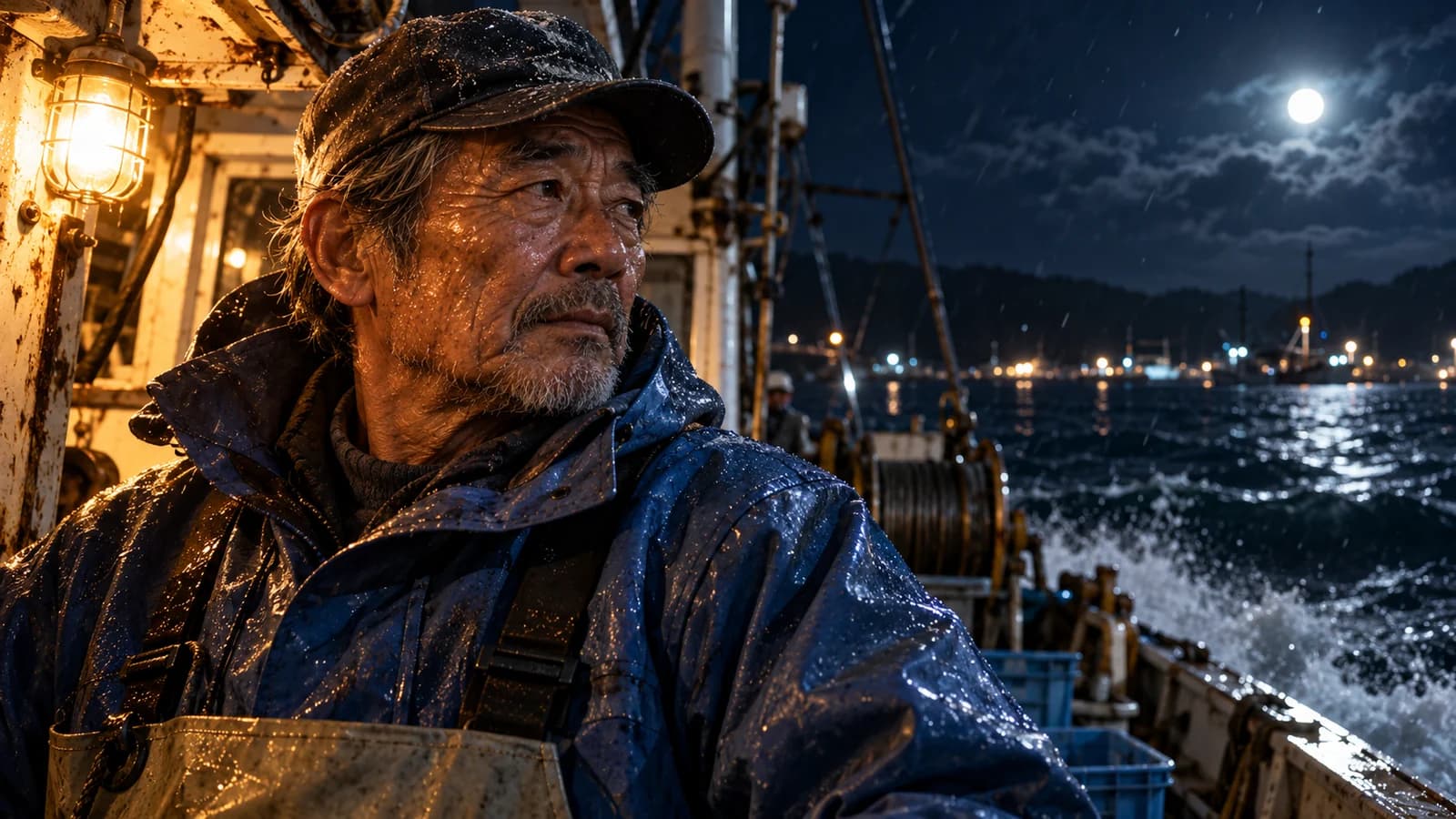
Realistic portraits benefit from a clear lighting direction. Try an environmental portrait of a fisherman at night: warm cabin light on the face, cold moonlight on the jacket, and rain in the background. Keep the expression and weathered skin texture visible rather than asking for a polished studio finish.
Combine subject, style, and scene references
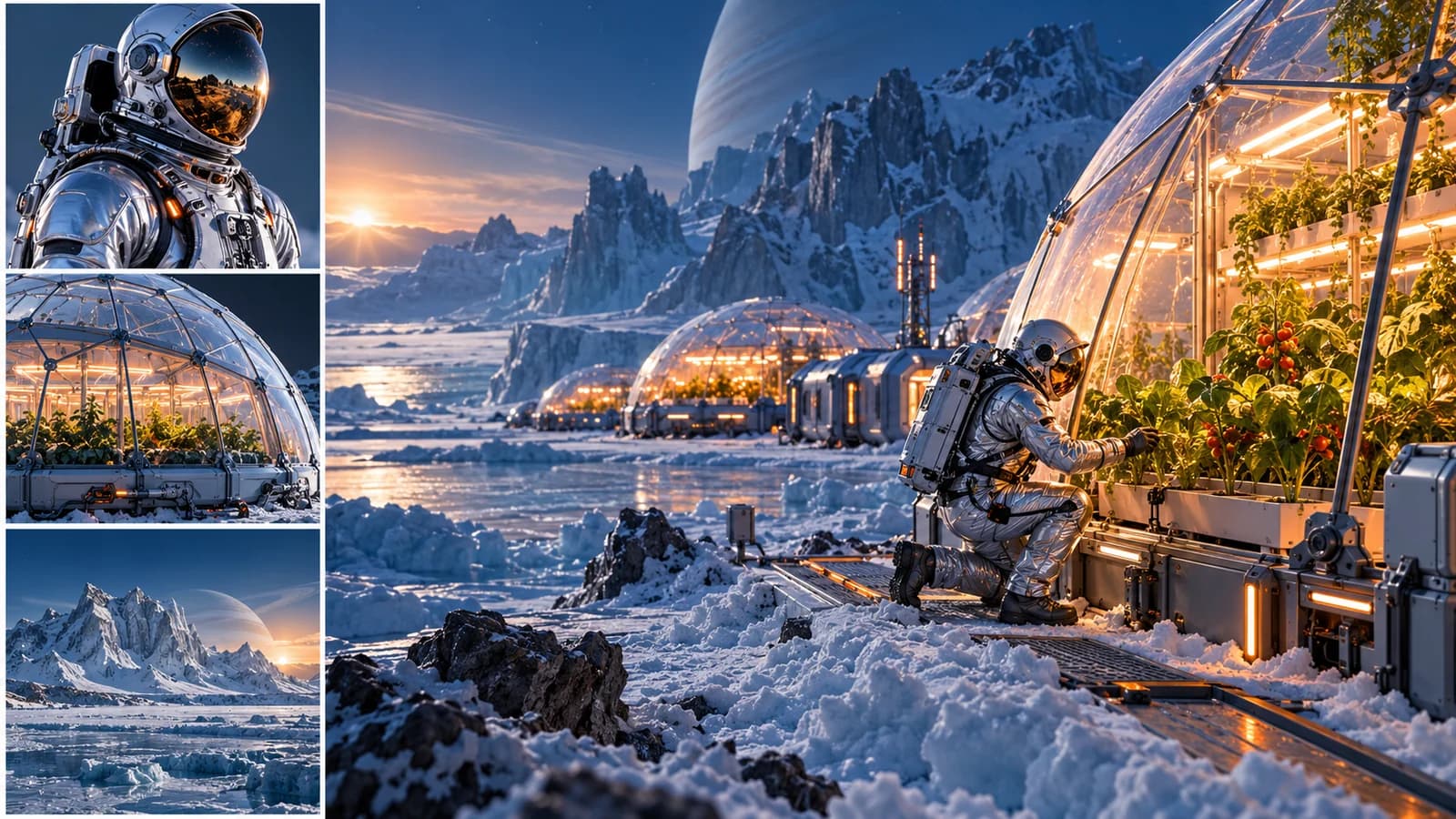
Give each reference a specific responsibility. An astronaut suit can define materials, a greenhouse dome can define architecture, and an icy landscape can define the setting. Explain which reference takes priority when their scale, color, or camera angles disagree.
03
Seedream 5.5 Prompt Ideas for Ads, Posters & Assets
Choose an output and adapt these original starter prompts to your own materials. The images illustrate creative directions, rather than verified Seedream 5.5 results.
Outdoor product ads with room for copy
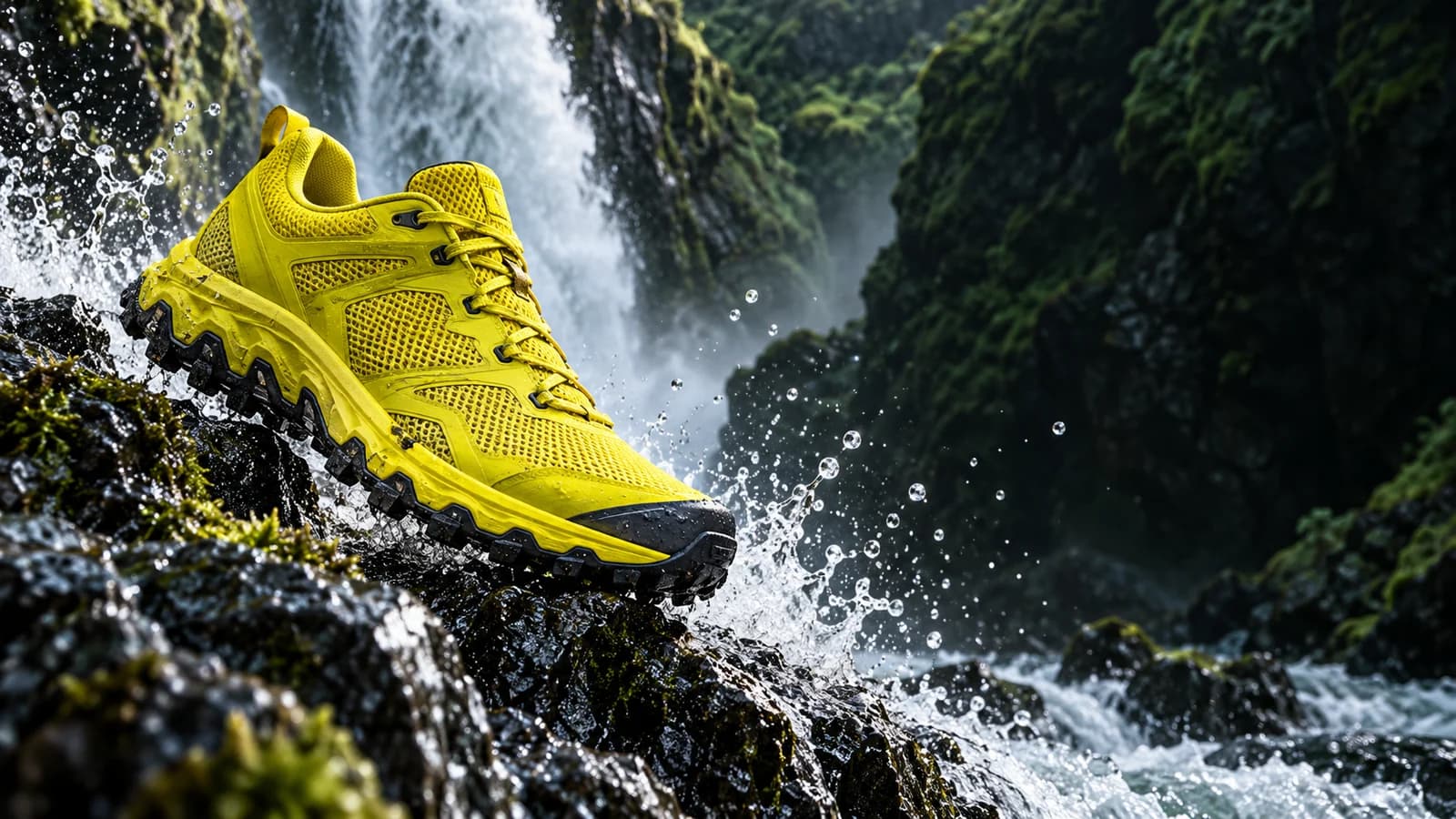
Prompt: “Photograph a single electric-yellow trail running shoe diagonally above wet volcanic basalt beside a waterfall. Place the shoe in the left third and reserve the dark right half for editable copy. Freeze the water spray, reveal the mesh and tread, and use emerald gorge shadows with a crisp rim light. No logos or lettering.”
Check whether the shoe stays recognizable when the banner is cropped for mobile. Review the laces, sole pattern, and water edges, and keep the offer text editable outside the image.
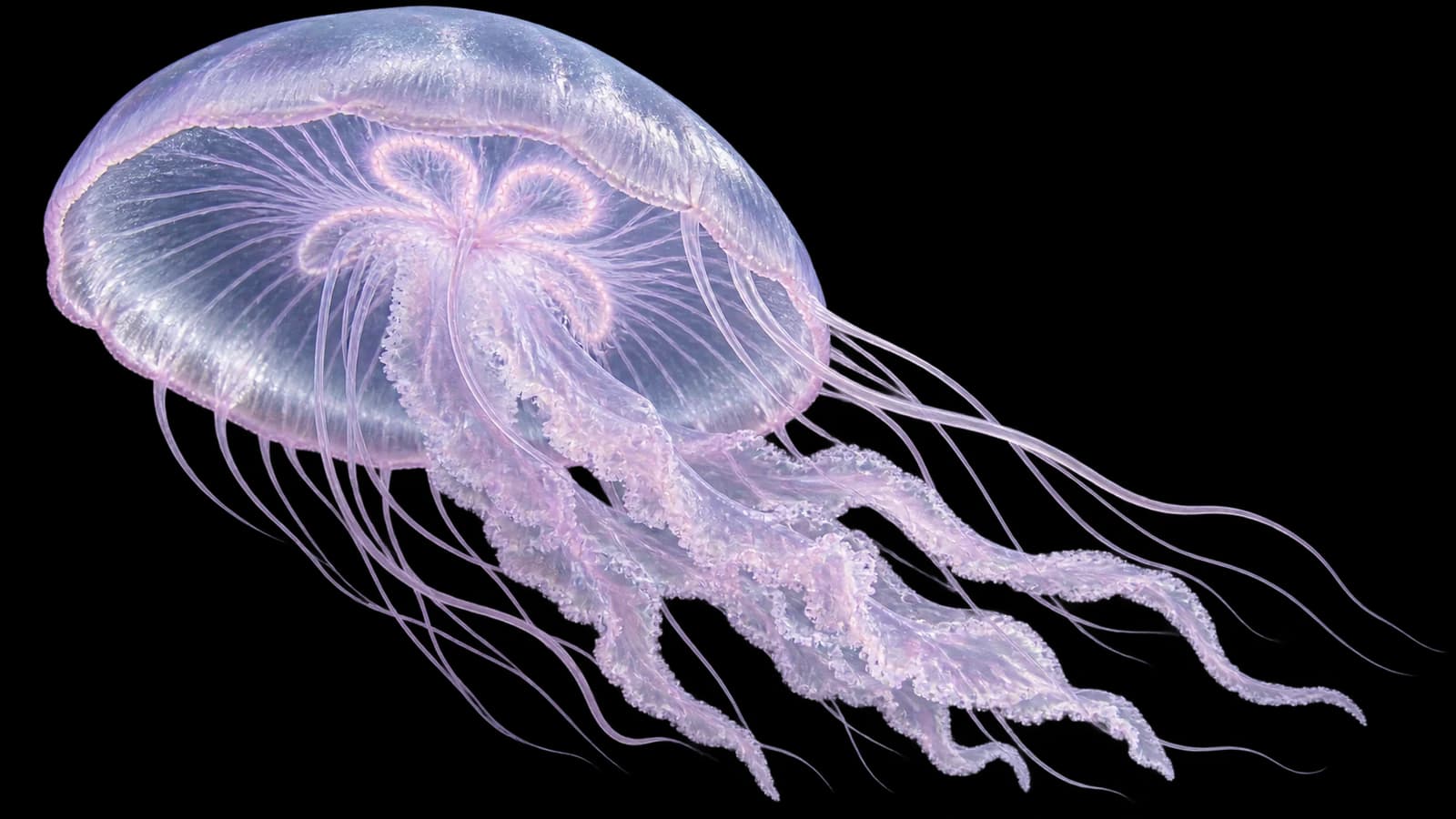
Prompt: “Create a single moon jellyfish in a low side view on a transparent alpha background. Use a translucent lavender bell, visible radial structures, and fine flowing tentacles. Add cool silver highlights and a soft pink rim. Keep all tentacles inside the canvas. No water background, floor, text, or border.”
Place the export over the backgrounds you plan to use. Check the bell interior and the spaces between tentacles as well as the outer edge; a solid silhouette does not demonstrate partial transparency.
Prompt: “Design a wide jazz concert poster on an ultramarine background. Crop a large white moon photograph at the upper right. Set the headline exactly as ‘MOON JAZZ’, with smaller lines ‘FRIDAY / 8 PM’ and ‘UNDER THE NIGHT SKY’. Add one thin orange rule. Use an asymmetric grid and clear white typography.”
Read the headline and smaller lines at the actual display size. This is a fictional event brief; replace the sample details with approved information before using it for a real concert.
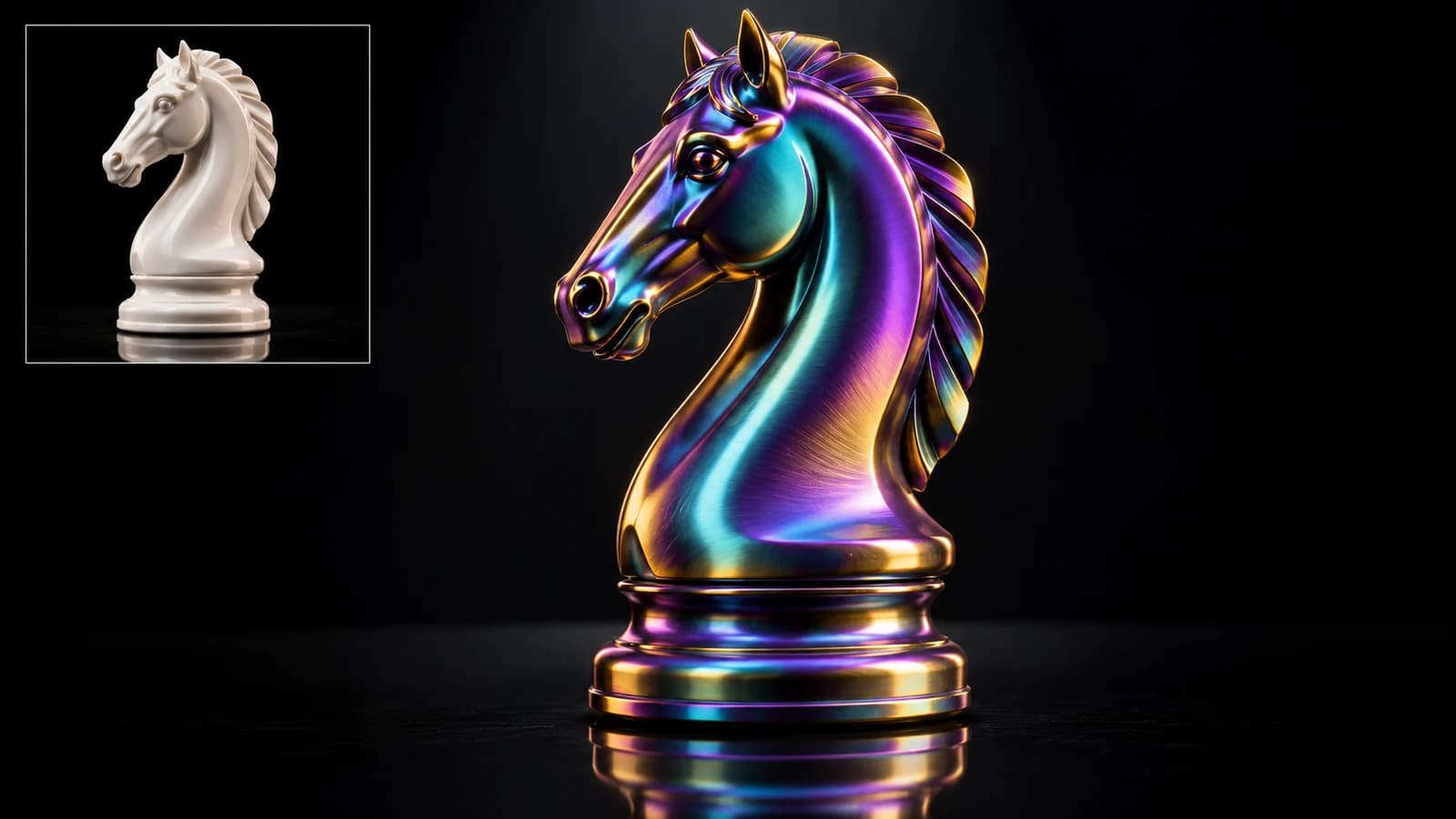
Prompt: “Change a matte white porcelain chess knight into iridescent anodized titanium. Keep the exact carved profile, ears, base proportions, and viewpoint. Match violet, teal, and gold reflections to the existing spotlight on a black mirrored surface. Do not add lettering or change the silhouette.”
Compare the knight profile and base before judging the reflections. Keep the material revision only if the original shape remains recognizable and the new finish responds consistently to the light.
From product campaigns to portrait revisions, choose a task with clear requirements and evaluate the finished asset at the size and format your audience will see.
Ecommerce teams building product campaigns
Start with a product whose shape and labeling you know well. Prepare a reference photo, the intended background, and a list of details that must stay recognizable. For your first Seedream 5.5 test, a single background or material request is easier to judge than a completely new scene with many objects.
Designers producing coordinated campaign sets
Choose a visual element that needs to appear in several layouts. Decide whether you need a complete poster, an isolated asset, or a background with space for editable type. Keep your source wording separately so revisions can be checked against the approved copy.
Social teams adapting visuals across formats
Write the message before choosing the visual treatment. Note which parts of the image can change for different formats and which parts carry the campaign identity. Review the smallest intended placement, where subtle details and fine text may be difficult to read.
Portrait creators exploring mood and light
Pick one change, such as clothing color or lighting mood. State the expression, framing, and recognizable facial details you want to retain. Compare the result beside the original rather than relying on memory.
05
Where Seedream 5.5 Could Fit Your Design Workflow
Start with your hardest recurring image task. Judge the first result and a realistic revision against clear acceptance criteria before changing your workflow.
Start with a deliverable you can evaluate
A translucent jellyfish should work over your chosen background. A revised product should retain its recognizable shape. A poster should display the exact wording you supplied. These are clearer tests than asking which model makes the most impressive picture.
Include a real revision in your trial
Plan one follow-up request before generating anything. You might change a garment color or replace a short headline. This lets you evaluate Seedream 5.5 against the work you do after an initial concept has already been approved.
Keep production moving while access is pending
The current limitation is availability: Seedream 5.5 is still coming soon. If your asset is due today, use a workflow you can access and verify today. Keep the same brief ready for a later trial instead of making your delivery depend on an unconfirmed rollout.
06
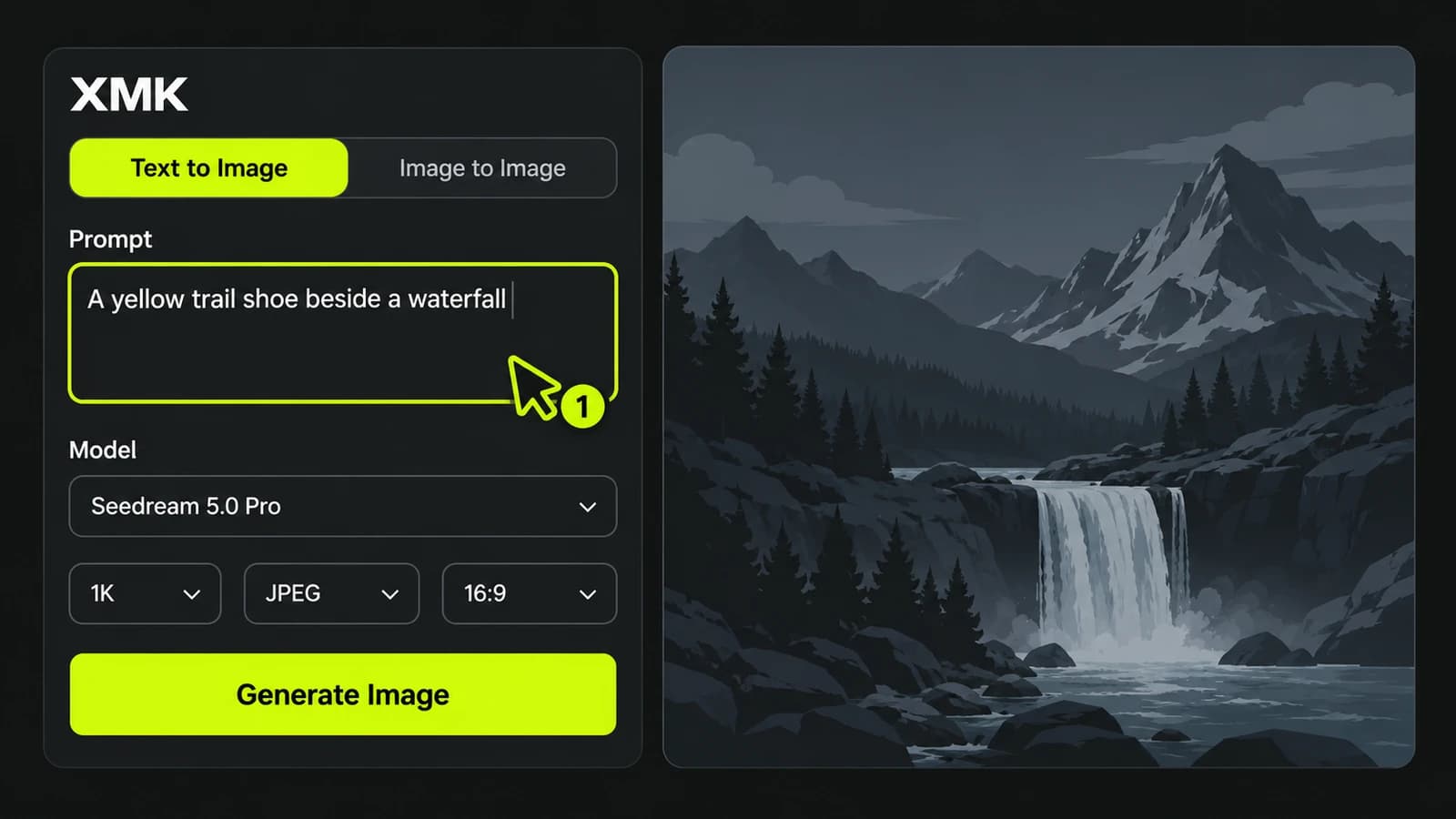
Your Seedream 5.5 Workflow: Prompt, Reference, Download
Describe your image, add references, then generate and refine. The workspace currently uses Seedream 5.0 Pro; select Seedream 5.5 when it becomes available.
Step 1
Describe your image.
Choose the available model and write a clear prompt: name the subject, composition, lighting, and exact wording. Select your aspect ratio and output settings, and check the displayed credit cost.
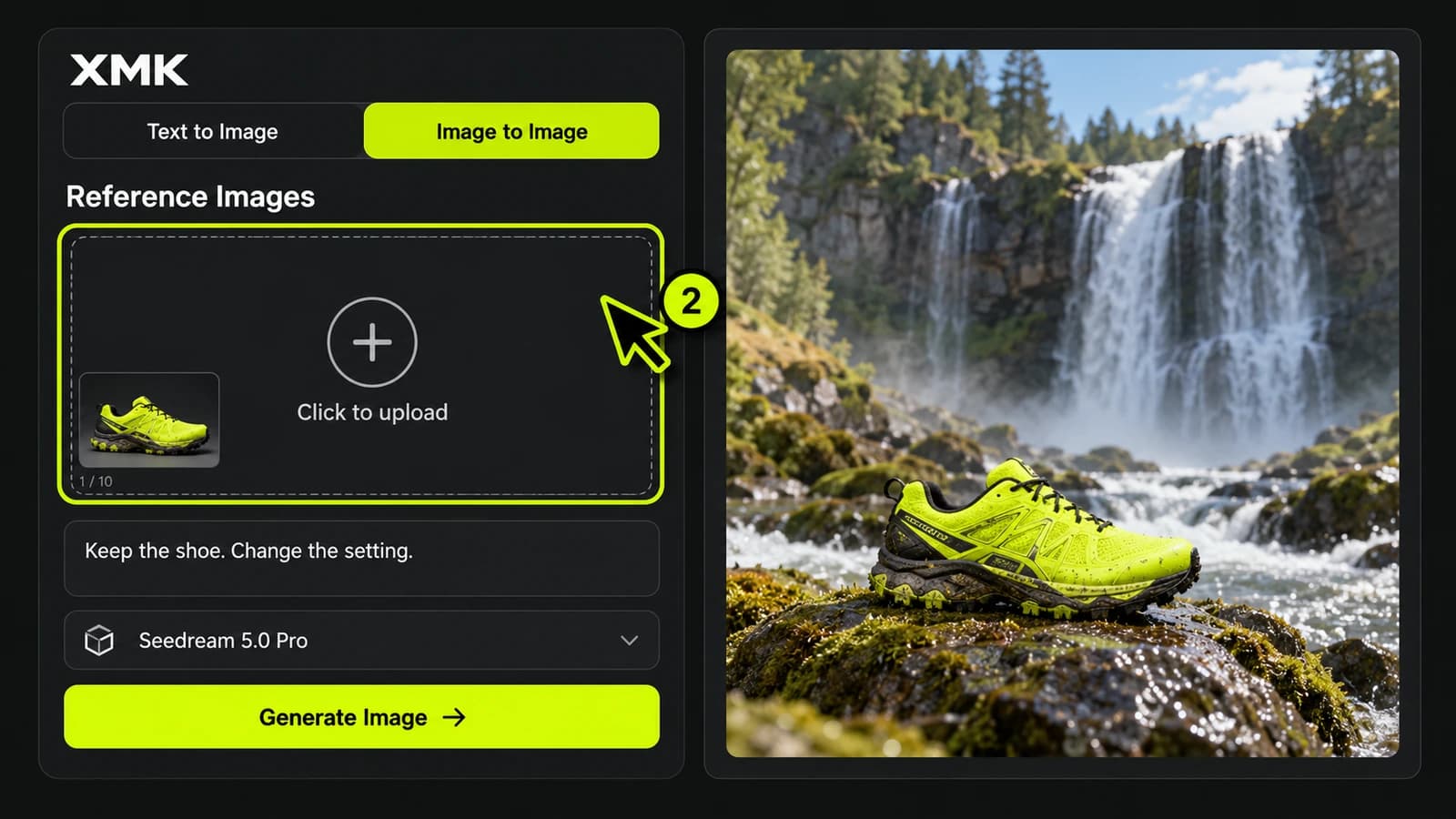
Step 2
Add your references.
Upload reference images when needed and explain the role of each one: subject, palette, or layout. Specify which details should stay unchanged and which parts you want to edit.
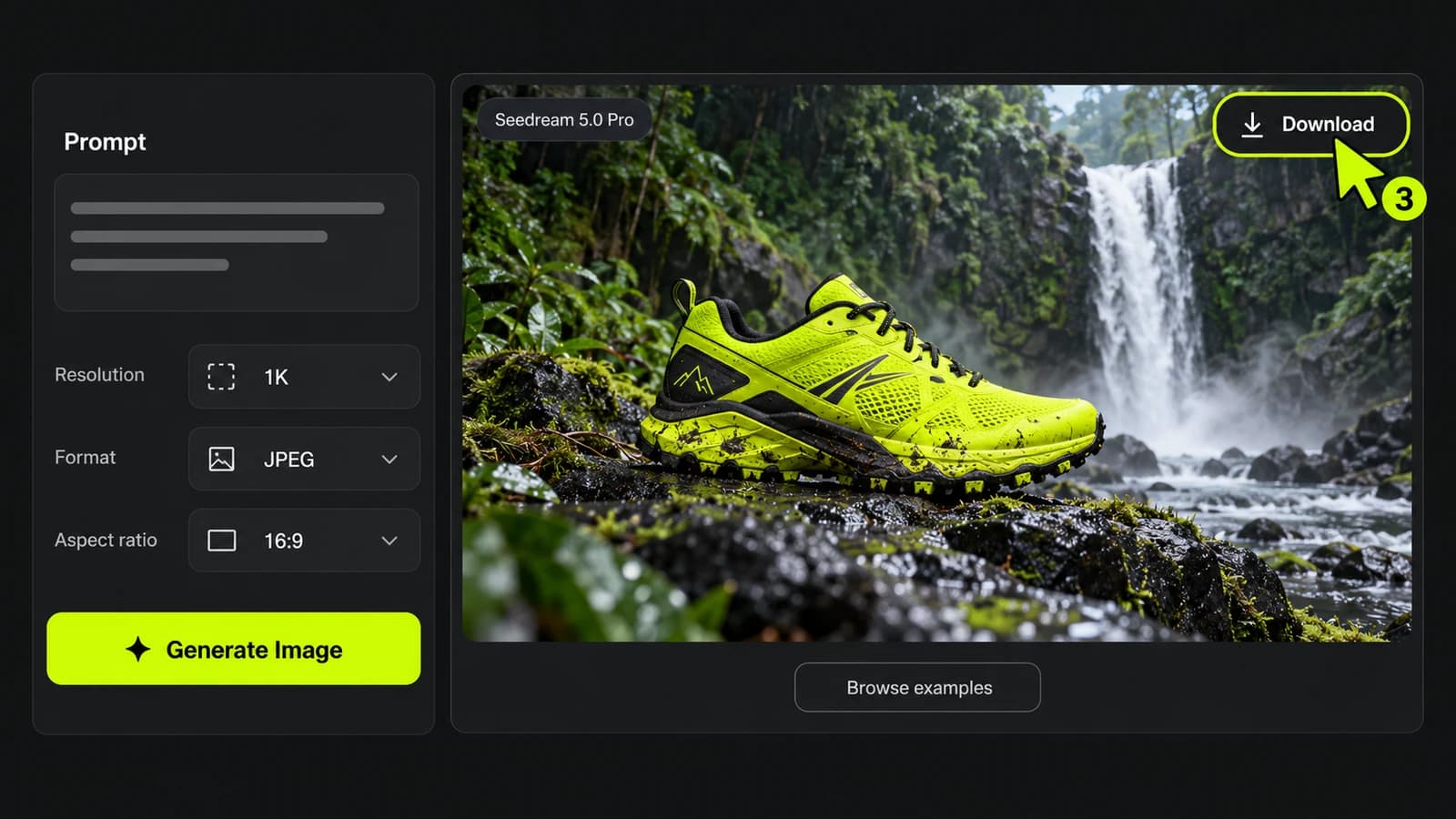
Step 3
Generate, refine, and save.
Review the composition, text, edges, and product details. Make one focused revision at a time, then download your chosen image and check it in the final layout.
07
XMK Plans & Seedream 5.5 Access
Choose from XMK credit packs and subscriptions below. These are platform plans; Seedream 5.5 access and model-specific generation costs will be confirmed when it becomes available.
Pricing Matrix
Choose the throughput that matches your workflow
Every plan keeps the same focused interface. You only scale output, speed, and capacity.
Plan
Base
$9.9
990 credits one time purchase
$0.010 per credits
1 concurrent generations
Video Models: Lite, Standard, Seedance Pro, Wan 2.5
Image Modals: Seedream 3.0, Google Nano Banana
Image & Video upscaling features
Plan
Pro
$29.9
3300 credits one time purchase
$0.009 per credits
3 concurrent generations
Video Models: Lite, Standard, Seedance Pro, Wan 2.5, Veo 3, Veo 3.1, Sora2
Image Modals: Seedream 3.0, Google Nano Banana
Image-editing features
Start & End Frame control
Wan Animate, Lipsync Studio
AI Avatar: Audio‑Driven Video GenerationWithout Limits
Google Veo 3.1
Google Veo 3.1 Fast
Google Nano Banana Pro
Seedream 4.0, 2K, 4K
Sora 2
Save 9.39% Today!
Most Popular
Plan
Ultimate
$49.9
5700 credits one time purchase
$0.008 per credits
3 concurrent generations
Video Models: Lite, Standard, Seedance Pro, Wan 2.5, Veo 3, Veo 3.1, Sora2
Image Modals: Seedream 3.0, Google Nano Banana
Image-editing features
Start & End Frame control
Wan Animate, Lipsync Studio
AI Avatar: Audio‑Driven Video GenerationWithout Limits
Google Veo 3.1
Google Veo 3.1 Fast
Google Nano Banana Pro
Seedream 4.0, 2K, 4K
Sora 2
Save 12.46% Today!
Plan
Creator
$99.9
13000 credits one time purchase
$0.007 per credits
4 concurrent generations
Video Models: Lite, Standard, Seedance Pro, Wan 2.5, Veo 3, Veo 3.1, Sora2
Image Modals: Seedream 3.0, Google Nano Banana
Image-editing features
Start & End Frame control
Wan Animate, Lipsync Studio
AI Avatar: Audio‑Driven Video GenerationWithout Limits
Find practical answers about model access, prompts, transparency, editing, and pricing so you can prepare your first test with clear expectations.
When can I access Seedream 5.5 on XMK?
+
Seedream 5.5 is coming soon. A preview page does not establish that the model is available in every account or on another platform. Check the model selector in the workspace you intend to use, and confirm that the selected name matches the version you want. If you have a deadline, keep an available workflow ready. You can still prepare a prompt and reference set while waiting for access. Reuse that same brief later so your evaluation starts from a task you already understand.
Has a Seedream 5.5 launch date been announced?
+
An exact Seedream 5.5 release date was not confirmed in the official sources reviewed for this page. Treat a forecast or third-party launch label as something to verify before planning production around it. Look for an announcement that identifies the version and explains where it is available. A model announcement and access through your preferred tool are separate questions. Keep your planned output format and reference materials ready in the meantime. Once access appears, begin with a small test rather than moving an entire campaign at once.
What should I check in Seedream 5.5 transparent exports?
+
Transparent RGBA imagery, including partially transparent areas, is described in the Seedream 5.5 preview. The file options exposed by your chosen tool still need to be checked. In your brief, name the isolated subject and specify which parts should remain translucent. After saving, place the asset over a light background and a dark one in your editor. Inspect holes, fine edges, and overlapping translucent areas rather than checking only the outside contour. Keep a copy of the original export so you can distinguish generation issues from changes introduced during later editing.
What belongs in a Seedream 5.5 image prompt?
+
Start with the finished asset, then describe its subject, composition, lighting, and exact wording. For Seedream 5.5, a useful first test is a brief whose success you can judge without guessing what you originally meant. Name the most important constraint early, such as keeping a product fully visible or leaving room for a headline. If you use references, explain the purpose of each one. Avoid combining unrelated style requests in the same sentence. Finish with the details that must not change, and keep the prompt beside the result when reviewing it.
How can I brief a focused Seedream 5.5 image edit?
+
Targeted revisions are part of the Seedream 5.5 preview, but each result still needs review. Write the requested change separately from the details you want preserved. A useful instruction might replace a jacket color while retaining its cut, buttons, pose, and background. Compare the result with the previous image before asking for another revision. Keep earlier versions so you can return to an acceptable starting point when a change causes a new problem. Do not assume that repeated editing guarantees identical untouched areas or an unlimited number of reliable revisions.
How do I prepare poster text for Seedream 5.5?
+
Text layouts are a relevant preview use case, but small copy still needs proofreading at its final size. Supply the words yourself instead of asking Seedream 5.5 to invent prices, dates, or product specifications. Define the reading order and the space allocated to each text block. Review similar-looking letters, punctuation, and line breaks before approving the image. If exact wording is essential, consider keeping critical text editable in your design file. That also gives you a practical way to update an offer without depending on another image-generation result.
What should I know about Seedream 5.5 costs?
+
A verified free allowance for this tool has not been supplied. Do not assume that a platform's general trial credits include Seedream 5.5 or every output option. Read the terms attached to the selected model before starting a job, especially if a subscription is required. Check whether revisions and larger outputs affect the amount you pay. If you are comparing offers, use the same sample task and count acceptable saved results rather than initial attempts alone. Keep the final output requirements consistent so the cost comparison remains useful.
How should I evaluate Seedream 5.5 for my projects?
+
Test a representative task before changing a workflow that already meets your needs. Choose a brief with known references, exact wording, and a specific output format, then evaluate Seedream 5.5 when access is available. Include one realistic revision so you assess the whole job rather than just the first image. Compare the saved results at the size where your audience will see them. Keep your current process if the new result creates more correction work or lacks a required export option. A switch should follow a clear benefit for your own projects.
09
Build Your Next Campaign Brief for Seedream 5.5
Choose one product image, poster, or isolated element. Collect your references, specify the finished format, and keep a short list of details that must survive each revision.
 CREATIVE CONCEPT