Learning how to use Grok Imagine Video 1.5 takes about five minutes—but knowing the right settings, prompt structure, and workflow decides whether your output looks like a rough draft or a finished production asset. Grok Imagine Video 1.5 Preview is xAI’s top-ranked image-to-video AI model, debuting at #1 on the Image-to-Video Arena leaderboard with a +52 Elo improvement over version 1.0. It turns a single still image into a cinematic video clip from a natural-language motion prompt, with native synchronized audio generated in the same pass—no extra tools, no post-production audio for quick drafts.
Quick Answer
To use Grok Imagine Video 1.5, upload an image, enter a motion prompt, choose your resolution and aspect ratio, then generate and download your video. This Grok AI video generator supports native audio generation and outputs image-to-video clips up to 720p, 15 seconds long.
Create your first AI video in under 60 seconds with Grok Imagine Video 1.5.
Start creating with Grok Imagine Video 1.5
This guide covers why the model is worth learning, the full step-by-step workflow on our platform, the best prompt examples, output settings, a Grok vs. Kling 3.0 comparison, common mistakes, and an FAQ.
Why Learn How to Use Grok Imagine Video 1.5
Most AI video generators ask you to describe an entire scene from a blank text box. Grok Imagine 1.5 takes a faster path: it’s an image-to-video model, so you start from a still you already control and direct how it moves. That matters for real workflows:
Speed. A typical clip generates in well under a minute, so you can test ideas at the pace you think.
Fidelity. Because the model preserves your source frame, brand colors, product details, and composition survive intact.
Built-in audio. Native audio generation means dialogue, sound effects, and ambient music arrive with the video—no separate sound pass.
Cost. As the #1-ranked image-to-video Grok video generator, it delivers leaderboard-quality motion at a fraction of premium-model pricing.
In short, learning how to use Grok Imagine Video 1.5 well turns a single photo into a publishable, audio-ready clip—fast enough to make daily content realistic.
What You Need Before You Start
Grok Imagine Video 1.5 is an image-to-video model, so your starting point is always a still image. Before you open the tool, have these ready:
A source image in JPG, JPEG, PNG, WEBP, GIF, or AVIF format
A clear idea of the motion you want—camera move, pacing, mood, and any audio
A target platform (landscape for YouTube, square for Instagram, vertical for TikTok/Reels) so you can set the right aspect ratio from the start
The better your source image—sharp, well-lit, compositionally strong—the better your output. The model preserves source detail and lighting faithfully, so it amplifies what you give it.
How to Use Grok Imagine Video 1.5: Full Step-by-Step Workflow
This is the complete Grok Imagine Video 1.5 tutorial, from a blank workspace to a finished, downloadable clip.
Step 1 — Open the Grok Imagine Video 1.5 Tool
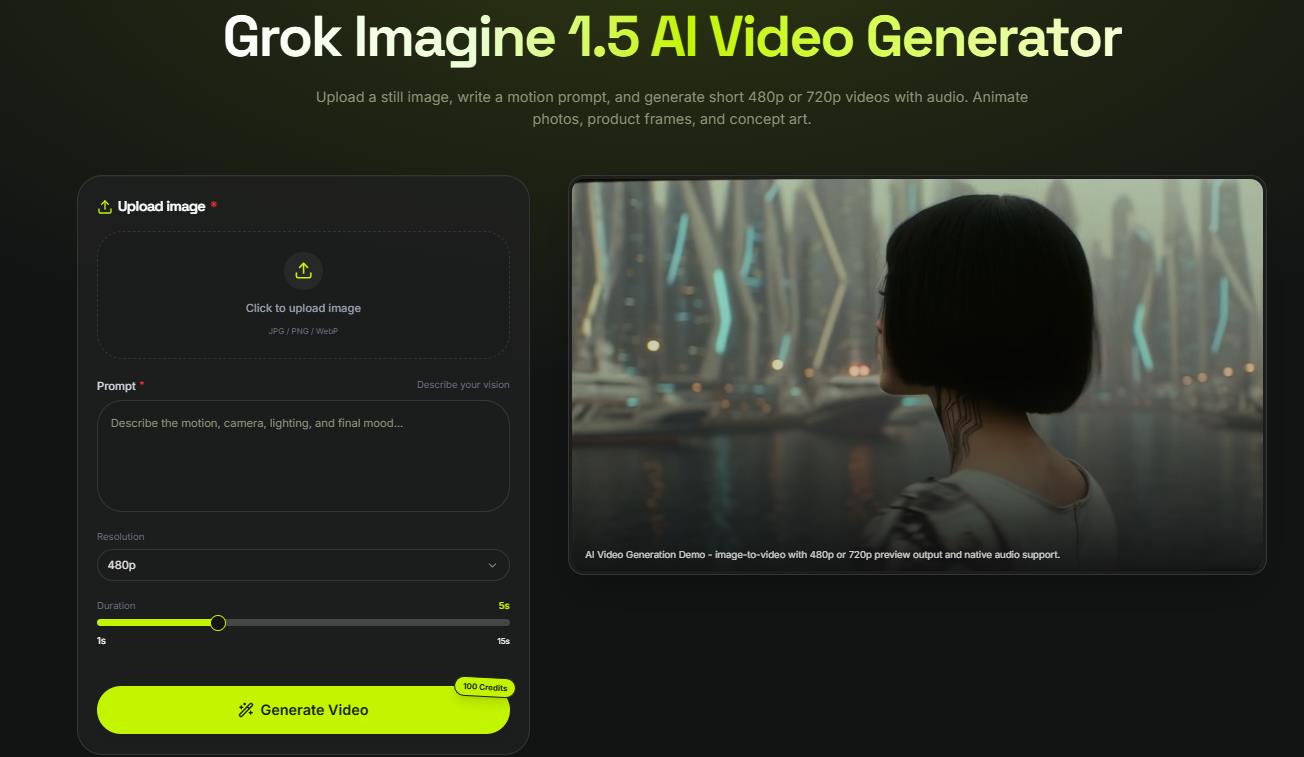
No installation required. The generator runs entirely in your browser.
Open Grok Imagine Video 1.5 — start for free
Sign in with your account. The workspace loads immediately—you’ll see the image upload area, the prompt box, and the output settings panel on one screen.
Step 2 — Upload Your Source Image
Click the upload zone or drag and drop your image. Supported formats: JPG, JPEG, PNG, WEBP, GIF, AVIF.
Tips for a stronger source image:
Use high-resolution originals — a blurry input produces a blurry output
Avoid heavily compressed JPEGs with visible artifacts; PNG or WEBP give cleaner results
Images with clear subject-background separation animate more predictably
Strong, directional lighting translates into more dramatic motion
Once uploaded, a preview appears. The model treats this as the opening frame of your video.
Step 3 — Write Your Motion Prompt
Strong Grok Imagine Video 1.5 prompts are the single biggest lever on output quality. Describe how the image should move in plain language—the model follows natural-language prompts accurately, with no special syntax required.
Prompt structure that works best: [Camera move] + [Subject motion] + [Lighting/atmosphere] + [Audio description]
The most important tip: Front-load your key action. The model renders described motions roughly in the order they appear, so put the most important movement first.
A few quick examples by use case:
Architecture — sweeping establishing shot:
Wide-angle crane shot slowly descending toward the building entrance, late afternoon light casting long shadows across the facade, light wind in surrounding foliage, distant urban ambient sound.
Fashion editorial — subtle motion:
Gentle fabric movement from a light breeze, model’s hair lifts slightly, soft studio light pulses warmer, camera holds still with very subtle drift, no audio.
Nature/wildlife — dramatic zoom:
Slow telephoto zoom toward the subject, background bokeh increases, ambient jungle sound builds gradually, camera stabilizes as the subject fills the frame.
Step 4 — Choose Your Grok Imagine Video 1.5 Settings
Configure three output settings: resolution, clip length, and aspect ratio.
Resolution:
Option | Best For | API Cost |
|---|---|---|
480p | Fast drafts, prompt testing, storyboards | ~$0.08/sec |
720p | Final delivery, client-facing output, social posts | ~$0.14/sec |
Recommended workflow: Draft at 480p first. Test two or three prompt variations cheaply, then re-render the winner at 720p.
Clip Length:
Length | Best For |
|---|---|
5 seconds | Social hooks, quick concept tests, animated thumbnails |
10 seconds | Product showcases, character introductions, scene setups |
15 seconds | Full scenes with pacing room, trailers, multi-beat narratives |
Aspect Ratio — match your platform:
Ratio | Platform |
|---|---|
16:9 (landscape) | YouTube, website hero, presentations |
1:1 (square) | Instagram feed, LinkedIn |
9:16 (vertical) | TikTok, Instagram Reels, YouTube Shorts |
4:5 | Instagram feed (slightly taller) |
Step 5 — Generate Your Clip
Click Generate. Generation typically completes in under a minute for 480p clips; 720p takes slightly longer. While the model runs, it animates your image frame-by-frame, generates native synchronized audio from your prompt, and maintains source-image lighting and detail throughout.
Upload one image and see how far native audio generation can take it.
Try your first Grok Imagine Video 1.5 clip now
Step 6 — Preview, Download, and Iterate
When generation completes, the clip plays in the workspace. Watch it through at least twice:
Happy with it? Download the H.264 MP4 — production-ready for most platforms.
Audio off? Adjust the audio description in your prompt and regenerate.
Camera move wrong? Rewrite the motion description and try again at 480p.
Too slow or fast? Add pacing language: “fast-paced”, “glacially slow”, “building momentum”.
Step 7 — Chain Into a Multi-Shot Sequence (Optional)
Grok Imagine Video 1.5 supports multi-shot sequencing—one of its most underused capabilities:
Prepare separate source images for each shot
Generate each shot with its own motion prompt
Download each clip as an MP4
Assemble the clips in any editor (Premiere, DaVinci Resolve, CapCut)
The model maintains visual consistency across shots—same lighting, subject, and atmosphere—so sequences feel cohesive rather than patchworked. This is how creators produce 30–60 second brand films largely with AI.
Prompt-Writing Guide: Advanced Tips
Describe Audio Even If You Think It’s Minor
Many users skip audio description. Don’t. Even a brief note—“soft ambient hum”, “no audio”, “city street sound at low volume”—improves synchronization and overall feel. Leave it blank and the model makes its own choice, which may not match your intent.
Use Camera Vocabulary
The model understands standard cinematography language:
Term | Effect |
|---|---|
Push-in / dolly in | Camera moves toward subject |
Pull-out / dolly out | Camera moves away from subject |
Pan left / pan right | Camera rotates horizontally |
Tilt up / tilt down | Camera rotates vertically |
Crane shot | Camera moves up or down through space |
Tracking shot | Camera follows a moving subject |
Handheld | Slight natural camera shake |
Static / locked off | Camera doesn’t move |
Specify Pacing and Lighting
Without pacing instruction, the model defaults to moderate speed—add language like “glacially slow”, “slow and deliberate”, “building momentum”, or “quick, energetic” when you have a preference. The model can also animate lighting within a clip: “warm golden hour light transitions to cooler dusk tones” or “a single spotlight intensifies from soft to dramatic.”
Best Grok Imagine Video 1.5 Prompts
Many creators searching for Grok Imagine Video 1.5 prompts want examples that generate realistic movement while preserving image quality. The most successful prompts generally combine four elements: camera movement, subject movement, lighting changes, and audio description.
Example Prompt — Product Advertisement
Slow cinematic orbit around the product, dramatic side lighting gradually shifting from warm orange to cool blue, subtle reflections across the surface, soft ambient electronic music.
Example Prompt — Portrait Animation
Slow push-in toward the subject, a gentle smile appears, hair moves naturally in the breeze, warm golden-hour lighting, soft city ambience in the background.
Example Prompt — Landscape Scene
Slow aerial drift across the mountains, clouds moving naturally across the sky, sunlight breaking through the mist, distant birds and gentle wind sounds.
When learning how to use Grok Imagine Video 1.5, prompt simplicity often produces more realistic results than overly detailed instructions.
Grok Imagine Video 1.5 vs Kling 3.0
One of the most common questions creators ask is whether Grok Imagine Video 1.5 or Kling 3.0 is the better AI video generator. Both are capable, but they’re optimized for different workflows.
Feature | Grok Imagine Video 1.5 | Kling 3.0 |
|---|---|---|
Primary workflow | Image-to-video | Text-to-video |
Native audio | Single-pass native | Limited |
Setup | No setup, browser-based | Requires more setup |
Max resolution | 720p (preview) | 1080p+ |
Best use case | Animate existing images | Generate new scenes from text |
Choose Grok Imagine Video 1.5 if:
You already have an image to animate
You want synchronized audio generation
You need fast content production with minimal setup
Choose Kling 3.0 if:
You need text-to-video generation
You require higher output resolution
You want to build new cinematic scenes from scratch
For image-to-video workflows, Grok Imagine Video 1.5 remains one of the strongest AI video generators currently available.
Grok Imagine Video 1.5 vs. Other Tools
Beyond Kling, here’s where Grok Imagine Video 1.5 sits against other leading models for real workflows.
Tool | Best At | Trade-off vs. Grok 1.5 | Use Instead When |
|---|---|---|---|
Grok Imagine 1.5 | Image-to-video, #1 leaderboard, native audio, cost | Max 720p in preview | — |
Seedance 2.0 | Dialogue-heavy content, multimodal reference control | More setup, slower iteration | You need lip-sync dialogue or deep reference matching |
Google Veo 3.1 | Highest resolution (up to 4K), premium output | Expensive, slower to iterate | Final delivery requiring 4K or near-4K |
Sora 2 | Physics realism, comprehensive audio | Less cost-effective for simple animation | Complex physics or speech-heavy scenes |
Runway | Integrated editing pipeline, post-generation control | Fewer native-audio features | You need a full editing environment alongside generation |
Decision framework:
Starting from an image → Grok Imagine 1.5 first
Starting from text → Seedance 2.0 (or Kling 3.0 — see the comparison above)
Need dialogue or lip-sync → Seedance 2.0 or Sora 2
Need 4K final output → Google Veo 3.1
Need to edit after generation → Runway
What Works in Practice
A few patterns follow directly from how the model works—worth keeping in mind as you learn how to use Grok Imagine Video 1.5:
High-quality, low-compression inputs win. Clean PNG or WEBP source frames animate more cleanly than re-saved, artifact-heavy JPEGs—the model preserves what it’s given.
Explicit audio cues beat silence. Describing the sound in your prompt produces more synchronized results than leaving audio to chance.
Shorter clips hold motion together. Five- to ten-second clips tend to keep motion more consistent than maxed-out durations packed with multiple actions.
One beat per short clip. A single clear action reads as more believable than several competing movements.
Draft cheap, finish sharp. Iterating at 480p before a final 720p render saves time and cost without sacrificing the result.
Common Mistakes and How to Fix Them
Prompt too vague. “Make this image move” gives no direction. Fix: specify the camera move, pacing, and at least one audio note.
Drafting at 720p every time. Expensive and slow for testing. Fix: draft at 480p, then re-render the winner at 720p.
Secondary action first. The model renders actions roughly in order. Fix: lead with your most important motion.
Low-quality inputs. The model can’t invent detail that isn’t there. Fix: use originals, not screenshots or re-saved JPEGs.
Ignoring audio. Leaving audio out leads to unpredictable sound. Fix: always include a brief note, even “no audio.”
Grok Imagine Video 1.5 Output Specs Quick Reference
Spec | Value |
|---|---|
Output format | H.264 MP4 |
Frame rate | 24 fps |
Max resolution | 720p (480p also available) |
Clip lengths | 5, 10, or 15 seconds |
Aspect ratios | 7 options (landscape, square, vertical) |
Native audio | Yes — generated in same pass |
Input formats | JPG, JPEG, PNG, WEBP, GIF, AVIF |
Long-Tail Use Cases: Grok Imagine Video 1.5 in Practice
Product photos for e-commerce video ads — orbit shots, zoom-in reveals, lighting shifts
Real estate listing videos from architectural photos — sweeping crane moves, establishing shots
Social content calendars from static brand assets — weekly animated posts without new shoots
Film pre-production animatics from concept art — fast, shareable shot concepts
YouTube Shorts hooks from single portrait images — fast vertical openers
Animated AI artwork for digital collectibles — subtle motion, atmospheric drift
Event promo clips from venue or speaker photos — momentum builds, dramatic push-ins
FAQ: How to Use Grok Imagine Video 1.5
Do I need to install anything?
No. The tool runs entirely in your browser—open the workspace, sign in, and start generating. No downloads or API key required for the web interface.
What image works best as a starting frame?
Sharp, well-lit images with clear subject-background separation animate most predictably. The model preserves what it receives, so input quality shapes output quality.
Can I use it without writing a prompt?
Technically yes, but results will be unpredictable. Even “slow push-in, no audio” dramatically improves consistency. Always write at least a brief motion description.
Why does my output ignore part of my prompt?
The model renders motions roughly in the order they appear, so instructions at the very end may arrive too late. Move your most important action to the front.
Can I control the audio?
Yes, through your prompt. Describe the sound design—instrument, volume, ambient texture, dialogue or atmosphere. The more specific the description, the more aligned the output.
How long does generation take?
Most 480p clips finish in under a minute; 720p and longer clips take slightly longer.
Is there a free way to try Grok Imagine Video 1.5?
Yes—the web interface is available to try directly.
Try Grok Imagine Video 1.5 for free
Can I use it for commercial projects?
Check xAI’s current terms of service for commercial usage rights, as these may evolve during the preview period.
Does Grok Imagine Video 1.5 support text-to-video?
The 1.5 Preview workflow centers on image-to-video, so you upload a source image as the opening frame. Text-to-video has historically been part of the wider Grok Imagine platform, and its status in the 1.5 line is still evolving—check xAI’s documentation for the latest.
Ready to turn still images into cinematic videos? Start your first Grok Imagine Video 1.5 project today.
Start creating with Grok Imagine Video 1.5 — open the workspace now